

 A100 SXM4 40GB

What is VRAM, and what is it used for?
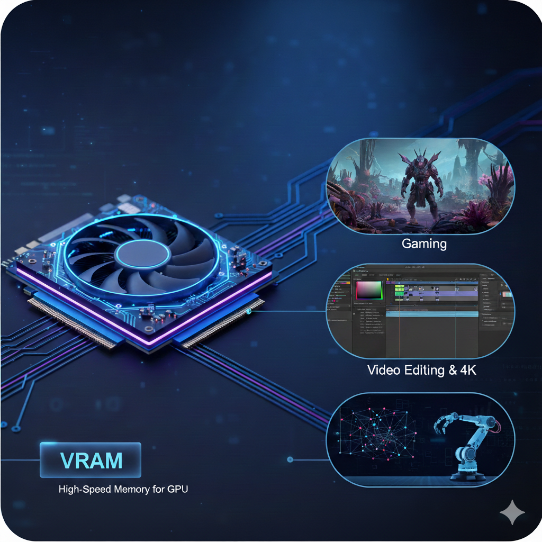
VRAM (Video Random Access Memory) is a specialized type of high-speed memory built directly onto a graphics card.
While standard system RAM is general-purpose memory used by the CPU, VRAM is dedicated exclusively to the GPU to assist in processing video output.
What VRAM does:
VRAM’s main purpose is to store data that the GPU needs to access very quickly. If the GPU had to retrieve this data from slower system memory or a hard drive, it could cause the screen to lag or stutter.
- Stores textures, images, and 3D models for games
- Holds video frames during playback or editing
- Keeps data ready for GPU computations (AI, rendering, simulations)
- 3D models and scene data
It is a type of memory designed to manage textures, images, and videos, helping visuals display smoothly in high-resolution games and advanced visual applications. Having more VRAM allows the system to handle detailed graphics, 4K videos, and demanding gaming experiences more effectively.
Difference between VRAM and system RAM
RAM (Random Access Memory) is general-purpose memory plugged into the motherboard for the CPU to use, whereas VRAM (Video RAM) is specialized memory located on the graphics card dedicated exclusively to the GPU. While both function as short-term storage, they serve different roles: RAM handles general computer processes and “gameplay stuff,” while VRAM stores visual assets such as textures, meshes, shaders, and frame buffers needed to render images.
Key differences between these two types of memory include:
Speed and Generation: VRAM is generally of a faster generation than system RAM. For example, a modern PC may use DDR4 system memory while its graphics card utilises GDDR6X video memory.
Physical Proximity: VRAM is physically closer to the GPU core and is not separated by the PCIe bus. This allows it to move data much more rapidly because it does not need to “share the road” with incoming texture and model data from the rest of the system.
Upgradability: While system RAM can often be expanded by adding more modules to the motherboard, VRAM is not upgradable. To increase the amount of video memory available to a system, a user typically needs to purchase a new GPU.
| Feature | VRAM | System RAM |
| Primary User | GPU | CPU |
| Location | On the graphics card | On the motherboard |
| Purpose | Parallel data access | General-purpose tasks |
| Upgradability | Usually upgradable | Fixed (cannot be changed) |
| Speed | Extremely high bandwidth | Lower bandwidth |
What CUDA is at a high level.
CUDA, which stands for Compute Unified Device Architecture, is a proprietary parallel computing platform and programming model developed by NVIDIA. It is designed to harness the massive computational power of Graphics Processing Units (GPUs) to accelerate computationally intensive applications beyond simple graphics rendering.
Before CUDA:
- GPUs were mainly used for rendering images
- General computations were limited to CPUs
With CUDA:
- GPUs can accelerate AI, machine learning, simulations, video encoding, scientific computing, and more
The only downside is that CUDA is proprietary to NVIDIA.
- If you have an NVIDIA graphics card, you can use CUDA.
- If you have an AMD or Intel graphics card, you cannot use CUDA; those brands use different “languages” like OpenCL or ROCm to achieve similar results.
At a high level, CUDA consists of the following key elements:
CUDA Cores: These are the GPU’s fundamental processing units, specialised for parallel processing. CUDA core is optimized to execute or compute specific instructions simultaneously across thousands of threads.
The Programming Model: CUDA provides a scalable model that abstracts the GPU hardware into a hierarchy of threads, thread blocks, and grids. This allows developers to partition complex problems into smaller, independent sub-problems that can be solved in parallel.
Software Layers: The platform is composed of two primary application programming interfaces (APIs): a low-level Driver API that offers fine-grained control over hardware resources, and a higher-level Runtime API that simplifies development by providing implicit initialization and context management.
Hardware Abstraction: Modern frameworks and libraries built on CUDA abstract the underlying complexity of GPU programming, making it accessible for general-purpose computing in fields such as deep learning, scientific simulations, and data analytics.
CUDA cores vs CPU cores (conceptual difference)
The fundamental conceptual difference between CUDA cores and CPU cores lies in their intended design philosophy: while a CPU is built to execute sequences of complex operations as fast as possible, a GPU is designed for massively parallel throughput.
You can’t directly compare the number of CUDA cores to CPU cores. A GPU with 10,000 CUDA cores isn’t “better” than a CPU with 16 cores; They are fundamentally built for different job types.
CUDA cores are designed to do many simple tasks at the same time.
CPU cores are designed to do a few tasks very intelligently and flexibly.
=> Sequential vs. Parallel Processing:
The conceptual difference lies in how they handle a list of tasks.
Sequential (CPU): Imagine a single 5-star chef. They can cook a complex, 10-course meal perfectly. They handle the appetizer, then the steak, then the dessert. If a recipe says, “If the sauce is too thick, add water,” the chef handles that logic easily.
Parallel (CUDA): Imagine 1,000 students in a cafeteria. They aren’t 5-star chefs, but if you need to flip 1,000 burgers at the same time, they will finish the job in seconds, whereas the 5-star chef would take all day.
The CPU-GPU Partnership
Conceptually, the relationship between these cores is like a relay race. The CPU acts as the primary runner, handling the system’s logic and instructions; if the CPU is too slow, it creates a bottleneck that prevents the thousands of CUDA cores from ever reaching their full potential, regardless of how powerful the graphics card is.
| Aspect | CUDA Core | CPU Core |
| Complexity | Do many simple things at once | Do one complex thing fast |
| Count | Thousands | Few |
| Latency | Higher | Low |
| Best For | AI Training, Video Rendering, Crypto, Physics. | Running Windows/macOS, Excel |
CUDA cores vs stream processors (NVIDIA vs AMD naming)
CUDA cores and stream processors are the proprietary names used by NVIDIA and AMD, respectively, to describe the fundamental processing units of their graphics cards.
A common misconception is that a higher core count between brands automatically translates to more speed. You might see an NVIDIA card with 5,000 CUDA Cores and an AMD card with 5,000 Stream Processors, but they won’t perform the same. You cannot compare GPUs purely by core count across brands.
1 CUDA core ≠ 1 Stream Processor in performance
What They Are?
NVIDIA (Warps): NVIDIA groups its CUDA cores into bundles of 32 threads called a Warp. The GPU schedules one instruction for all 32 cores at once. If your code isn’t a multiple of 32, some cores sit idle.
AMD (Wavefronts): AMD traditionally groups its Stream Processors into bundles of 64 threads called a Wavefront. Because the bundles are larger, AMD cards often have more raw “cores” on paper to ensure they can fill these larger wavefronts.
Architectural Differences
Execution model:
CUDA cores use SIMT (Single Instruction, Multiple Threads), where each thread in a warp can follow slightly different paths.
Stream Processors use SIMD (Single Instruction, Multiple Data), where threads in a wavefront execute the same instruction strictly in lockstep.
| Feature | NVIDIA CUDA Cores (SIMT) | AMD Stream Processors (SIMD) |
| Granularity | 32 Threads (Warp) | 64 Threads (Wavefront) |
| Scheduling | Hardware-led. Complex schedulers inside the GPU manage stalls and swaps. | Compiler-led. Relies on pre-optimized “vOP” instructions to fill the lanes. |
| Divergence Penalty | Lower. 32-thread bundles are easier to fill and recover from branching. | Higher. If 1 thread in a 64-thread group branches, you might waste 63 cores’ worth of work. |
| Latency Hiding | Excellent. Switches warps instantly if one is waiting for data. | Good, but relies more on its massive Infinity Cache to prevent waiting in the first place. |
| Compute Philosophy | Focused on Flexibility (best for AI, Ray Tracing). | Focused on Throughput (best for raw Rasterization/FPS). |
What Tensor Cores are (high-level overview)
Tensor Cores are specialized hardware units built into NVIDIA GPUs. They are important for AI because they are especially designed/built to speed up matrix calculations, which are the core mathematical operations used in deep learning and artificial intelligence.
By handling these operations more efficiently than traditional GPU cores, Tensor Cores help AI models train faster and run more efficiently.
Acceleration of Matrix Mathematics:
Tensor Cores are optimized to perform a key operation called Fused Multiply-Add (FMA). In simple terms:
- Two matrices are multiplied
- A third matrix is added to the result
- All of this happens in a single step (or clock cycle)
This fusion makes the computation much faster and more energy-efficient compared to performing each step separately.
AI and machine learning tasks, such as natural language processing (NLP) and computer vision, depend greatly on matrix multiplications and convolution operations. Tensor Cores are designed to accelerate these computations by using a Fused Multiply-Add (FMA) operation. In this process, two matrices are multiplied, and the result is combined with a third matrix in a single clock cycle. By performing these steps together, Tensor Cores reduce the number of required operations, lower memory access delays, and greatly improve performance for neural network training and inference.
How Tensor Cores Differ from Regular GPU Cores
Traditional GPU cores (called CUDA cores) are designed to handle a wide variety of tasks, such as graphics rendering, physics simulations, and general-purpose computations.
Tensor Cores, on the other hand:
- Focus on specific math patterns used in AI
- Works best with lower-precision numbers (such as FP16, BF16, or INT8)
- Deliver much higher performance for matrix-heavy workloads
Because of this specialization, Tensor Cores can perform many more calculations per second than general-purpose cores when running AI tasks.
Why Tensor Cores matter mainly for AI workloads?
AI and Deep Learning are almost entirely built on Matrix Multiplication. When you ask ChatGPT a question or use an AI image generator, the computer is performing trillions of these “grid-based” calculations.
Tensor Cores are primarily significant for AI because they are purpose-built to accelerate matrix operations, which serve as the fundamental mathematical building blocks of deep learning and artificial intelligence.
Acceleration of Matrix Math:
Deep learning models, especially transformers and large language models (LLMs), consist of billions of parameters that require massive amounts of matrix multiplications and convolutions. Tensor Cores are designed exactly for this type of math and can perform these operations far faster than standard cores, making them a perfect match for AI workloads.
Mixed-Precision Computing and Reduced Training Time:
Training an AI model can take days or even weeks on traditional hardware. Tensor Cores use an optimization technique called Mixed Precision. In traditional computing, we use high-precision numbers (FP32) to be as accurate as possible. However, AI doesn’t always need that much detail to learn effectively. They utilize lower-precision formats like FP16 (half-precision) for compute-heavy tasks, which reduces the size of tensors, lowers memory usage, and allows for larger batch sizes. To ensure model stability and accuracy, they accumulate results into higher-precision formats like FP32 (single-precision), preventing numerical issues such as underflow or overflow during gradient updates. This approach can lead to up to 3x speed improvements in training while maintaining comparable accuracy to high-precision-only models
Massive Throughput:
By executing a fused multiply-add (FMA) operation in a single step, Tensor Cores process large data arrays (tensors) simultaneously rather than calculating individual values one by one.
Power and Memory Efficiency:
Because they are physically optimized for AI-specific math, Tensor Cores consume less power per operation and use less memory when working with lower-precision formats.
GPU clock speed explained simply
GPU clock speed is a measurement of how many clock cycles the GPU’s processing units can complete in a single second. It is measured in Megahertz (MHz) or Gigahertz (GHz). During each cycle, the GPU can process instructions related to rendering graphics, running computations, or handling other visual tasks.
1 MHz = 1 million cycles per second.
1 GHz = 1 billion cycles per second
Each “clock cycle” is a small step in the work the GPU does, such as:
- Rendering graphics
- Processing pixels
- Running shader calculations
- Performing compute tasks (AI, video encoding, etc.)
Generally, a higher clock speed means the GPU can perform calculations faster, leading to higher frame rates (FPS) in games, smoother video encoding, and more rapid data processing in professional rendering applications. However, a higher clock speed does not always equate to better performance because of several interconnected factors.
Base vs. Boost Clock
Modern GPUs do not run at one fixed speed. They change their speed based on workload and temperature.
Base Clock: The guaranteed minimum speed the GPU will run at under normal, consistent, heavy load.
Boost Clock: The maximum speed the GPU can automatically achieve when it has enough “thermal headroom” (it’s cool enough) and power. It’s a “turbo” mode.
Why does a higher clock speed not always mean better performance?
It’s a common misunderstanding to think that a GPU with a 2.5 GHz clock speed is always faster than one running at 2.0 GHz. This can be true when comparing the same model, but it doesn’t necessarily apply to different models or generations. Many beginners fall into this trap. For example, an older or lower-end GPU might have a higher clock speed, such as 2.5 GHz, but still perform worse than a newer, more advanced GPU with a lower clock speed, like 1.8 GHz.
Here is why raw clock speed can be misleading:
- Architectural Efficiency:
The design of a GPU, also known as its microarchitecture, is more important than its raw speed. Newer architectures, such as NVIDIA’s Ampere or Hopper, are much more efficient than older ones like Pascal or Volta. This means they can complete more work in each clock cycle, and because of this improvement, a newer GPU with a lower clock speed might still outperform an older GPU running at a much higher frequency.
Example:
Imagine two workers. Worker A (New Architecture) takes one step and moves 5 feet. Worker B (Old Architecture) takes one step and moves 3 feet. Even if Worker B takes steps 20% faster, Worker A will still travel further overall.
- Core Count and Parallelism
GPU performance is a balance between the speed of the cores (clock speed) and the number of cores available to do the work. Because GPUs are designed for massively parallel tasks, a card with thousands of CUDA cores running at a moderate clock speed will typically process data much faster than a card with fewer cores running at a very high clock speed. High core counts allow for more simultaneous processing, which is vital for modern visual effects and AI workloads.
Example:
GPU A:1,000 cores @ 2.0 GHz
GPU B:3,000 cores @ 1.5 GHz
Even though GPU A has a higher clock speed, GPU B can process more work in parallel, making it faster overall.
- Thermal Throttling
If a GPU gets too hot, it will automatically lower its clock speed to prevent damage. A card with a high advertised boost speed might perform poorly if it overheats, resulting in a lower sustained speed than a slower card with better cooling.
- Memory Bottlenecks
The GPU chip is fast, but it needs to get data from its VRAM (Video Memory). If the memory is slow, the GPU will spend “clock cycles” waiting for data to arrive. This means the high clock speed is effectively wasted because the chip is idling while waiting for the memory.
While GPU clock speed is an important factor, it is only one part of overall performance. Modern GPUs rely on a combination of design architecture, number of cores, memory performance, power delivery, and cooling. Because of this, a GPU with a lower clock speed but a newer design and more cores can often perform better than an older GPU with a higher clock speed.
When choosing a GPU or comparing performance, it’s best to look at complete reviews and benchmark results instead of focusing on clock speed alone.
Role of GPU architecture in performance
When choosing a graphics card, many beginners focus solely on “raw” specifications like the amount of VRAM or the number of cores and clock speed. However, the GPU architecture, the fundamental way the chip is designed and built, is often the most critical factor in determining how a card actually performs in the real world.
What is GPU Architecture?
GPU architecture defines how a graphics processor is designed internally, how its cores are organized, how memory is accessed, how instructions are executed, and how efficiently workloads are handled. Two GPUs with similar specs can perform very differently if they are based on different architectures.
Architectural Efficiency:
Newer architectures are significantly more efficient than older ones. For example, NVIDIA’s Ampere or Hopper designs can do more work in a single clock cycle than older Pascal or Maxwell designs. This means a modern GPU with fewer cores can often outperform an older card with a higher VRAM/core count.
Specialised Processing Units:
The number of processing cores (CUDA cores/Stream Processors) and how they’re organized significantly impacts performance. Modern architectures introduce dedicated hardware such as Tensor Cores and Ray Tracing Cores for specific tasks.
Ray Tracing (RT) Cores: Specifically designed to calculate how light hits objects, creating realistic shadows and reflections in games.
Tensor Cores: Specialized for the complex matrix math used in AI and Deep Learning.
Memory Management:
Architecture determines how the GPU interacts with its memory (VRAM). Improvements in memory bandwidth and cache handling allow newer cards to move data faster and reduce “bottlenecks” where the processing cores have to wait for data to arrive.
VRAM (Video RAM): The amount of dedicated memory determines how much data the GPU can work with simultaneously. More VRAM is crucial for high-resolution textures, large AI models, and complex 3D scenes
Bandwidth: The speed at which data travels between the VRAM and the cores. Think of this as the “width of the highway.” Even with fast cores, a narrow highway (low bandwidth) will cause a performance bottleneck.
GPU architecture plays an important role in how well a graphics card performs, how efficient it is, and what it can do. While specifications like core count and memory size matter, the underlying architecture determines how effectively those resources are used. By understanding these architectural differences, you can make a more informed choice and select the right GPU for your needs and budget, whether for gaming, content creation, or AI development.
Most Popular GPU Architectures:
| Manufacturer | Popular Architecture | Primary Use Case |
| NVIDIA | Blackwell (RTX 50-Series) | High-end gaming, AI research, and 3D rendering. |
| NVIDIA | Ada Lovelace (RTX 40-Series) | Current mainstream gaming and content creation. |
| AMD | RDNA 4 (RX 9000-Series) | Value-focused gaming, high raw performance. |
| Intel | Xe2 / Battlemage (Arc B-Series) | Budget and mid-range gaming, video encoding. |
What PCIe is and why it matters for GPUs
When people compare GPUs, they usually focus on VRAM size, core counts, or clock speeds. But there’s another important piece of the performance puzzle that often gets overlooked: PCIe. PCIe determines how your GPU communicates with the rest of your system. Even the most powerful GPU can be limited if the PCIe connection is too slow or too narrow.
When reviewing a graphics card (GPU), you may see terms like PCIe 3.0, PCIe 4.0, or PCIe 5.0 in the specifications.
What Is PCIe?
PCIe stands for Peripheral Component Interconnect Express. It’s a high-speed interface standard that connects components inside your computer to the motherboard. Think of it as a highway system inside your PC. PCIe provides the roads that allow your graphics card, storage drives, sound cards, and other components to communicate with your CPU and memory.
For a GPU, PCIe is the primary data path used to send massive amounts of visual information (textures, lighting, and geometric data) to the card for processing into the images you see on your screen.
Think of PCIe like a multi-lane highway:
Cars = data
Lanes = PCIe lanes
Speed limit = PCIe generation (3.0, 4.0, 5.0)
More lanes and higher generations mean more data can move faster between the GPU and the rest of the system.
Why PCIe Matters for Your GPU
The graphics card needs to constantly exchange information with your CPU and system memory. This includes receiving instructions about what to render, accessing textures and game assets, and sending back the processed images to display on your screen.
The quality and configuration of the PCIe connection directly impact a GPU’s ability to render frames and process data efficiently.
If PCIe bandwidth is insufficient:
The GPU may wait idle for data
Performance may drop in data-heavy workloads
Expensive GPUs may not reach their full potential
Data Throughput: Modern high-resolution gaming (4K/8K) and AI workloads require moving large amounts of data every second. If the PCIe “highway” is too narrow or slow, the GPU remains idle, waiting for data, which leads to lower frame rates (FPS).
VRAM Management: When a GPU runs out of its own onboard video memory (VRAM), it must “borrow” from the system’s slower RAM via the PCIe bus. In these cases, a faster PCIe generation can significantly reduce the performance “stutter” that occurs during this emergency data swap.
DirectStorage Technology: Modern games use Microsoft DirectStorage to pull assets directly from an NVMe SSD into the GPU’s memory. This bypasses the CPU and relies heavily on a high-bandwidth PCIe connection to make game loading nearly instantaneous.
Lane Bottlenecks: Some modern budget GPUs (like the RTX 4060 or 5060 series) only use x8 or even x4 physical lanes to save costs. If you put these “half-lane” cards into an older PCIe 3.0 slot, the performance drop can be significant because they are forced to run at 3.0 speeds on only a few lanes.
PCIe Generation Speed Comparison
Newer PCIe generations assist graphics cards with fewer lanes by doubling the data rate per lane with each successive version. Because each lane becomes significantly faster, a card can achieve high performance levels even when physically restricted to a smaller number of lanes
PCIe has evolved through several generations, each roughly doubling the speed of the previous one. Here’s how they compare per lane:
| PCIe Version | Bandwidth Per Lane | Bandwidth (x16 PCIe Slot ) |
| PCIe 3.0 | ~1 GB/s | 16 GB/s |
| PCIe 4.0 | ~2 GB/s | 32 GB/s |
| PCIe 5.0 | ~4 GB/s | 64 GB/s |
| PCIe 6.0 | ~8 GB/s | 128 GB/s |
When selecting a graphics card, check your motherboard specifications to determine the PCIe generation it supports and ensure the motherboard has an available PCIe x16 slot. Most modern GPUs use a PCIe x16 slot, which provides the maximum bandwidth available on consumer motherboards.
PCIe Lanes and Bandwidth Basics
What Are PCIe Lanes?
PCIe lanes are high-speed data paths that allow components like a graphics card or SSD to communicate with the CPU. Each lane carries data in both directions simultaneously. Because data can move in both directions at the same time, PCIe is called a full-duplex interface.
Think of PCIe lanes like lanes on a highway. Just as more highway lanes allow more cars to travel simultaneously, more PCIe lanes allow more data to transfer at once. Each lane operates independently, so adding more lanes multiplies your total bandwidth.
More lanes → more data can travel at once
Higher generation → each lane moves data faster
PCIe Lanes and Physical Configuration:
PCIe slots and devices come in different physical sizes, which correspond to the number of lanes they support:
Lane Groupings: Individual lanes are grouped into wider connections to provide higher bandwidth, typically labeled as x1, x4, x8, or x16.
PCIe x16 (sixteen lanes) is the standard for graphics cards and represents the longest slot on a motherboard. This configuration provides maximum bandwidth for demanding devices like gaming and professional GPUs, high-end capture and video encoding cards, and some enterprise storage controllers.
PCIe Bandwidth
Bandwidth is the total amount of data that can move through these lanes every second. The total bandwidth depends on two factors: the number of lanes and the PCIe generation.
It depends on:
- PCIe generation (speed per lane)
- Number of lanes (x1, x4, x8, x16)
Formula (conceptual): Total Bandwidth = Bandwidth per lane × Number of lanes
| PCIe Version | Number of Lanes | Bandwidth per Lane | Total Bandwidth |
| PCIe 3.0 x16 | 16 | ~1 GB/s | ~16 GB/s |
| PCIe 4.0 x16 | 16 | ~2 GB/s | ~32 GB/s |
| PCIe 5.0 x16 | 16 | ~4 GB/s | ~64 GB/s |
| PCIe 6.0 x16 | 16 | ~8 GB/s | ~128 GB/s |
Notes:
x16 means the device uses 16 PCIe lanes.
Each new PCIe generation doubles the bandwidth per lane.
Bandwidth shown is one-way (PCIe supports the same speed simultaneously in both directions).
PCIe and bandwidth are the communication backbone of your GPU. While it doesn’t make your GPU faster by itself, it determines how efficiently your GPU can be fed with data.
PCIe lanes define how wide the road is, and PCIe bandwidth defines how fast traffic moves. Together, they determine how efficiently your GPU communicates with the rest of your system.
GPU driver: what it does
When you install a graphics card (GPU) in your computer, the hardware alone is not enough to make it work. The operating system and applications need a way to communicate with the GPU, tell it what tasks to perform, and receive results back.
What is a GPU Driver?
A GPU driver is a piece of software that allows your operating system and applications (games, design tools, AI software) to communicate properly with your graphics card (GPU).
While a GPU is a physical hardware component capable of performing thousands of calculations at once, it doesn’t “speak the same language” as software. The driver provides the specific instructions that tell the hardware exactly how to render images, process data, or manage its memory. Think of it as an interpreter that allows the operating system and applications to communicate with your graphics card effectively.
A GPU driver is a system software that:
- Allows the operating system (Windows, Linux, macOS) to recognize the GPU
- Enables applications (games, AI tools, rendering software) to send instructions to the GPU
- Manages how the GPU’s hardware resources are used
Without a GPU driver:
The GPU may not be detected at all.
You may be stuck with basic display output.
GPU acceleration (gaming, AI, video rendering) will not work.
What Does a GPU Driver Do?
The primary role of a driver is to serve as a translator. It takes instructions from the operating system or applications and converts them into a language the graphics card hardware can execute. Its core responsibilities include:
1. Translation and Communication
The driver converts high-level commands from the operating system and applications into low-level instructions that the GPU hardware can understand and execute. When you launch a game or run a graphics-intensive program, the driver translates those requests into specific tasks for the GPU.
2. Resource Management
The driver manages GPU resources like memory allocation, power consumption, and thermal management, ensuring your GPU operates efficiently and safely.
3. Performance Optimization
GPU manufacturers regularly update drivers to improve performance, fix bugs, and add support for new games and applications. A driver update might make the game run faster or fix graphical glitches without any changes to the game itself.
4. Feature Enablement
Advanced features like ray tracing, CUDA acceleration, or video decoding are unlocked through drivers.
Without the driver, your GPU is just a piece of hardware. With the driver, it becomes a powerful tool for graphics and computation.
CUDA Driver vs. CUDA Runtime
If you work with NVIDIA GPUs, you may hear about CUDA Driver and CUDA Runtime. They sound similar but serve different purposes.
CUDA Driver and CUDA Runtime are two different layers of software that work together, but they serve different purposes and are used differently.
=> CUDA Driver
The CUDA driver is the low-level software that communicates directly with the GPU and comes with the NVIDIA GPU driver installation. Think of it as the foundation layer.
The CUDA driver is part of the NVIDIA GPU driver package that:
- Allows CUDA applications to access the GPU
- Manages GPU execution for CUDA programs
- Handles communication between CUDA software and the GPU hardware
What it is: A core component of the NVIDIA GPU driver that provides the basic API for GPU computing.
Installation: Installed automatically when you install NVIDIA GPU drivers.
Backwards compatibility: Newer drivers support older CUDA versions.
Who uses it: Advanced developers who need fine-grained control, or used indirectly by higher-level software
You must have the CUDA Driver installed for CUDA applications to work.
=> CUDA Runtime
The CUDA runtime is a higher-level library that sits on top of the driver, and that makes programming easier. It is bundled with the CUDA toolkit that developers install when they want to write GPU-accelerated applications.
What it is: A user-friendly library that simplifies CUDA programming
Installation: Comes bundled with CUDA-enabled applications or the CUDA Toolkit.
Who uses it: Most CUDA programmers and applications use this for easier development
| Feature | CUDA Driver | CUDA Runtime |
| Level | Low-level | High-level |
| Installation | Comes with NVIDIA GPU driver | Comes with the CUDA toolkit |
| Function | Directly manages the GPU hardware, memory, and contexts. | Provides easy-to-use programming APIs |
| Language | Language-independent; deals with compiled binary objects. | Primarily C++ based. |
| Compatibility | Backwards compatible | Must match toolkit version |
| Updates | With GPU drivers | Independently, per app |
| Who uses it? | Software that needs deep, precise control over hardware. | Most developers and common AI/rendering apps. |
The CUDA driver provides the fundamental GPU control, while the CUDA runtime provides convenient tools for developers—and they work together seamlessly to power GPU-accelerated applications.
CUDA Toolkit: what’s included and why it’s needed
If you are new to GPUs, AI, or high-performance computing, you may often hear the term CUDA Toolkit, especially when installing machine learning frameworks or setting up a GPU-accelerated system.
The CUDA Toolkit has a specific role, mainly focused on developing and building GPU-accelerated applications.
What Is the CUDA Toolkit?
The CUDA Toolkit is a comprehensive software development package created by NVIDIA that allows developers to harness the power of NVIDIA graphics cards (GPUs) for general-purpose computing tasks, not just graphics rendering.
Note: The CUDA Toolkit cannot be used to program non-NVIDIA graphics cards
CUDA, which stands for Compute Unified Device Architecture, is both a parallel computing platform and a programming model.
CUDA Toolkit allows developers to create, compile, debug, and optimize programs that run on NVIDIA GPUs using CUDA.
What is Included in the CUDA Toolkit?
The toolkit provides everything a programmer needs to develop, profile, and deploy applications. Its core components include:
NVCC Compiler:
This translates your CUDA code (written in C, C++, or Fortran with CUDA extensions) into instructions that can run on NVIDIA GPUs.
Specialised Libraries:
To save developers from writing complex math or AI logic from scratch, the toolkit includes Pre-written highly optimised libraries such as cuBLAS (for linear algebra), cuFFT (for signal processing), cuDNN (for deep learning), and TensorRT (for AI inference)
cuBLAS: Fast math and matrix operations
cuDNN: Deep learning and neural network acceleration
cuFFT: Fast Fourier transforms
Developer Tools (Nsight):
The toolkit also includes tools to help with development and performance tuning. These help developers make GPU programs faster and more efficient.
Powerful software (like Nsight Systems and Nsight Compute) is used for debugging (finding errors) and profiling (finding ways to make code run faster).
CUDA Runtime:
The “bridge” that manages the communication between your software and the GPU hardware. This is a high-level software layer that manages the GPU automatically. It handles essential tasks like allocating memory on the graphics card.
Documentation and Samples: Comprehensive guides, API references, and example code help developers learn how to use CUDA effectively.
Why is the CUDA Toolkit Needed?
The CUDA Toolkit is essential for developers because it provides the necessary software environment to harness the parallel computing power of NVIDIA GPUs for general-purpose tasks beyond graphics rendering. While GPUs were historically designed for gaming, the toolkit allows them to be utilised for high-performance computing in fields like deep learning, scientific simulations, and data processing.
1. Unlocking GPU Power for Non-Graphics Tasks:
Traditionally, GPUs were designed solely for rendering graphics in games and professional visualization. CUDA Toolkit enables developers to use these powerful processors for scientific computing, data analysis, artificial intelligence, and many other applications. Without CUDA, accessing this computing power would be extremely difficult or impossible.
2. Abstracting Hardware Complexity
Without the CUDA Toolkit, writing code that runs directly on a GPU is extremely complex, but the CUDA Toolkit provides a programming model and language extensions that make it accessible to developers familiar with standard languages like C, C++, and Fortran. It abstracts much of the underlying hardware complexity, providing a simpler path for users to write programs that execute on the device
3. Unlocking Massive Parallelism
While a CPU is designed to execute a sequence of operations (threads) as quickly as possible, a GPU is designed to execute thousands of threads in parallel. The CUDA Toolkit provides the platform to leverage this architecture, solving complex computational problems much more efficiently than a standard CPU.
4. Essential Development Tools and Libraries
The toolkit includes the fundamental components required to build and run GPU-accelerated applications:
CUDA Runtime: It provides C and C++ functions that execute on the host to allocate and deallocate device memory and manage data transfers between the host (CPU) and device (GPU).
Optimised Libraries: It grants access to specialised libraries and frameworks like TensorFlow and PyTorch, which are used for AI training and would be incredibly difficult to write from scratch.
nvcc Compiler: Compiles CUDA C/C++ code with special extensions for GPUs.
5. Hardware Optimisation and Scalability
The toolkit allows software to take full advantage of specialised hardware within the GPU, such as Tensor Cores for AI and Ray Tracing Cores for complex physics. Furthermore, the CUDA model provides automatic scalability; a compiled CUDA program can execute on any number of processor cores, allowing the same code to run efficiently on everything from inexpensive mainstream GPUs to high-performance data centre products.
The CUDA Toolkit is the foundation of GPU-accelerated computing on NVIDIA hardware.
Relationship between driver, CUDA, and applications
To run or develop high-performance software on an NVIDIA GPU, three components must work together: the NVIDIA Driver, the CUDA Toolkit, and the Application.
Here’s how these three components interact when you run a GPU-accelerated application:
Application → CUDA Runtime/Libraries→ GPU Driver → GPU Hardware → Results
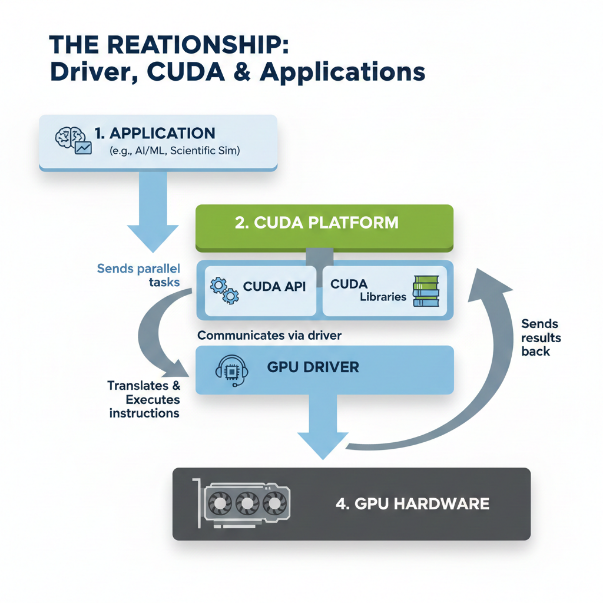
Application → asks CUDA to perform a task (e.g., matrix multiplication for AI).
CUDA → translates that request into GPU instructions.
NVIDIA Driver (The Foundation):
The driver is the lowest layer of software. It interfaces directly with the GPU hardware.
Think of this relationship like a restaurant: the Application is the customer placing an order, the CUDA Toolkit is the waiter translating that order into kitchen instructions, and the Driver is the chef who actually operates the stove (the GPU hardware) to cook the meal.
| Layer | Responsibility | Analogy |
| 1. Application | The end-user software (e.g., PyTorch or a game) that needs heavy math done quickly. | Customer |
| 2. CUDA Toolkit | A set of tools and libraries (like cuDNN or cuBLAS) that tells the GPU how to solve specific mathematical problems. | Waiter |
| 3. NVIDIA Driver | The low-level software that talks directly to the GPU hardware to manage memory and execute tasks. | Chef |
Common beginner misconceptions about GPU terms
Beginners often get confused because some terms sound similar and are commonly misunderstood when buying a GPU. These misunderstandings can lead to choosing the wrong hardware, having unrealistic performance expectations, or feeling confused when reading documentation.
1. VRAM vs System RAM:
VRAM and system RAM are often mixed up, so it’s understandable to be confused. VRAM (video memory) is memory built into the graphics card and is used specifically for graphics-related tasks. System RAM, on the other hand, is used by the CPU for general computing. Because they serve different purposes, regular system RAM can’t simply replace VRAM when the graphics card runs out of its own memory.
2. Higher memory = better performance:
It’s also common for beginners to compare 12GB and 8GB cards and assume the 12GB version is faster. In reality, performance is influenced much more by factors like the GPU’s architecture, clock speeds, and the number of processing cores (such as CUDA or Stream Processors).
3. Higher clock speed means better GPU:
People familiar with CPUs sometimes try to compare GPU clock speeds the same way, but a 2.5GHz GPU isn’t necessarily faster than a 1.8GHz one. Architecture, core count, and memory bandwidth matter much more.
4. More cores mean a faster GPU:
Having more GPU cores can help with tasks that run in parallel, but many applications cannot efficiently use thousands of cores. Because of this, a newer GPU with fewer cores can sometimes outperform an older GPU with more cores. GPU performance depends on several factors, not just core count. Core efficiency, architecture, memory bandwidth, clock speeds, and software optimization all play important roles. Newer architectures, such as NVIDIA’s Ampere or Hopper, often perform better than older ones like Pascal or Volta, even with similar or fewer cores.
In short, a higher core count does not automatically mean better performance. Newer, more efficient architectures can deliver better results than older GPUs with higher core counts.
5. CPU Does Not Matter with a Powerful GPU:
Many people assume that if they have a high-end GPU, the CPU becomes less important. The idea is that the GPU will handle all the heavy work, so the CPU’s role can be minimal. Because of this, some users invest heavily in a powerful GPU while paying little attention to the CPU.
In reality, the CPU and GPU work closely together. If the CPU cannot keep up, it creates a bottleneck that prevents the GPU from reaching its full potential, no matter how powerful the GPU is. The CPU is responsible for tasks such as game logic, non-player character (NPC) AI, physics calculations, and managing data and instructions in demanding applications. When the CPU is too slow, the GPU must wait, which reduces overall system performance.
6. Any GPU can Effectively Handle AI and ML Workloads
It is a common belief that any GPU used for everyday tasks can also handle Artificial Intelligence (AI) or Machine Learning (ML) workloads. In reality, AI and ML tasks often require specialised hardware, such as Tensor Cores, which are designed to efficiently process large matrix calculations and handle vast amounts of data. While general-purpose GPUs can still run AI and ML applications, they typically perform much more slowly and less efficiently compared to GPUs that are specifically optimised for deep learning tasks.
7. GPUs are Only for Gaming or High-End Enterprises
There are two common misunderstandings about GPUs: some people believe that GPUs are only useful for gaming, while others think they are only meant for large, expensive professional systems.
Beyond Gaming: GPUs are widely used for much more than games. Their ability to process many tasks at the same time makes them very valuable for data analysis, scientific research, machine learning, and video rendering.
Accessible to More Users: Because of the modern cloud services, such as GPU-based virtual machines or “GPU droplets,” high-performance computing is no longer limited to large companies. Individual developers and startups can now access powerful GPU resources without needing to invest in costly hardware upfront.
9. CUDA Cores and Stream Processors are Comparable
Many beginners try to compare NVIDIA’s CUDA Cores directly with AMD’s Stream Processors. However, because they are built on very different architectures, comparing them one-to-one doesn’t give meaningful results. A better way to understand real-world performance is to look at independent benchmarks, rather than trying to match these different types of cores directly.