

 A100 SXM4 40GB


Choosing a cloud GPU for AI/ML is not just “bigger VRAM is better.” The best GPU is the one that matches your model, your work (training or serving), and your budget—and helps you finish faster without paying for power you don’t use.
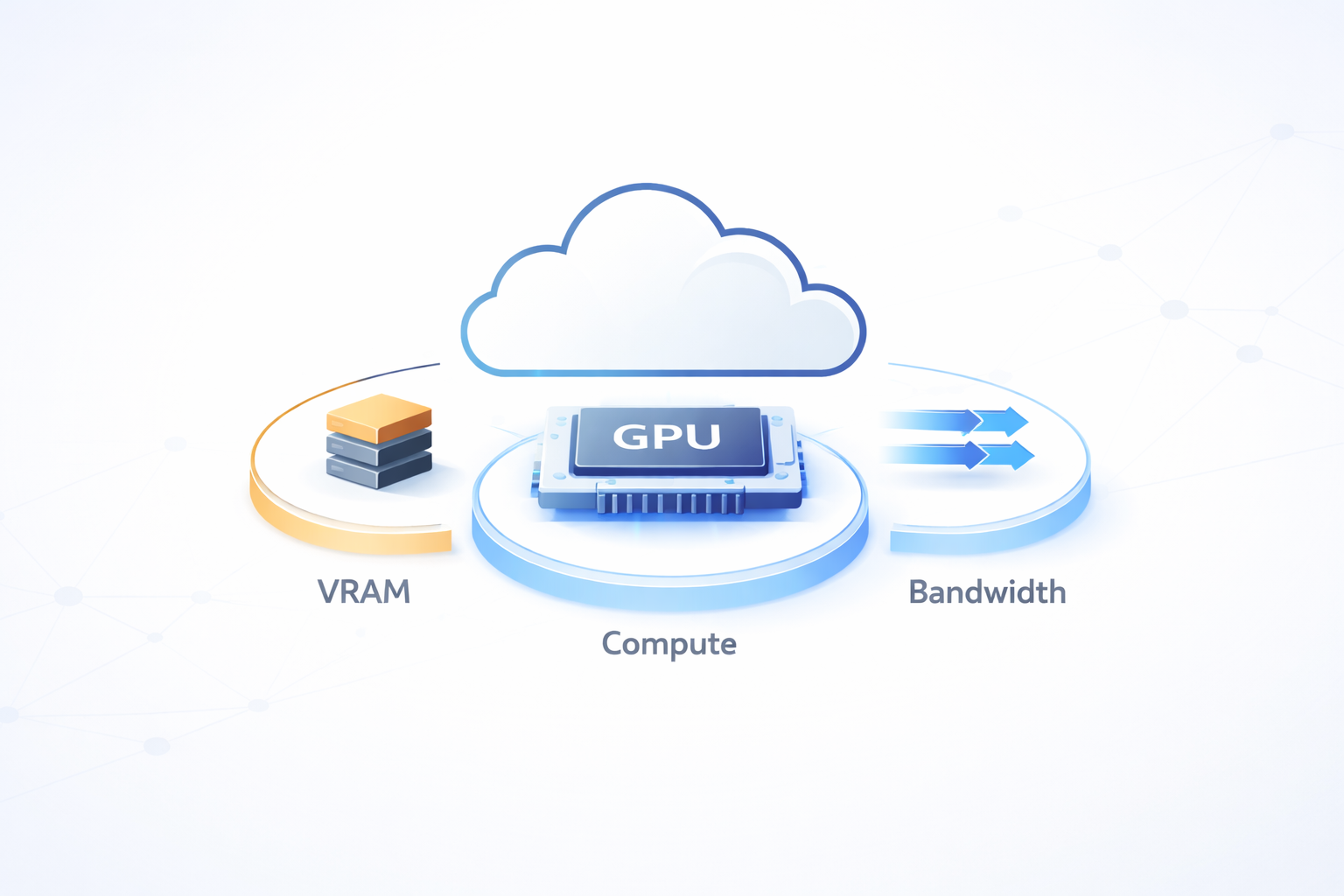
Think of a GPU as doing three main jobs:
1. Hold the model and work data (VRAM, “video RAM” / GPU memory)
2. Do the heavy math (compute power)
3. Move data fast enough so it doesn’t sit idle (memory speed + data loading)
If any one of these is weak for your use case, you will feel it as slow training, low speed, high delay, or out-of-memory errors.
What you’ll learn in this guide
Quick way to decide
A simple step-by-step approach to narrow down the right GPU before comparing models and prices.
1) First decide your work type: training, fine-tuning, or serving
Understand how different AI tasks place very different demands on a GPU.
2) GPU memory (VRAM) is the first limit
Learn why memory size decides whether your model runs smoothly or fails with errors.
3) Don’t trust only TFLOPS numbers
See why real-world speed depends on more than raw compute power.
4) Number types matter: BF16/FP16 and INT8/INT4
Understand how data precision affects speed, stability, and cost.
5) Using more than one GPU: connection speed matters
Learn when multi-GPU helps—and when it only adds cost and complexity.
6) Make sure your GPU is not waiting for data
See how slow data loading and preprocessing can waste GPU power.
7) Software support matters a lot
Why drivers, frameworks, and optimized kernels change real performance.
8) Pricing: focus on cost per result, not cost per hour
Learn how to measure what you really pay for training and inference.
9) Real-world issues: availability and stability
Understand quotas, regional limits, and why reliable GPUs matter in production.
10) Common use cases (how teams choose)
Examples of how teams pick GPUs for experiments, training, and serving.
Final note: test before you commit
Why small benchmarks save time, money, and surprises later.
Quick way to decide
Before you compare GPU names and numbers, follow this order:
1. Fit check: Can your model run with your needed batch size + sequence length (or image size) at your chosen precision?
2. If it fits, find what is slowing you down: math speed, memory speed, multi-GPU connection, or data loading.
3. Compare GPUs by cost per output, not cost per hour: $/epoch, $/1M tokens, $/10k images, etc.
This is how most teams decide in real projects.
1) First, decide your work type: training, fine-tuning, or serving
Different work types need different GPU strengths.
Training from scratch
This is long and heavy work. You usually need:
- Strong math speed for matrix work
- High memory speed
- Enough VRAM for training memory needs
- Good multi-GPU speed (only if you really need it)
Fine-tuning
Often lighter than full training, but not always. Fine-tuning large language models can still need a lot of VRAM because of:
- Long input text (long context)
- Bigger batches
- Full model updates (instead of lighter methods)
Serving (inference)
This is running the model for users.
- Low delay (fast response) vs high capacity (many requests)
- Cost per token/request/image
- Enough VRAM for weights and, for LLMs, KV cache (explained below)
If you clearly choose “training vs serving,” GPU selection becomes much easier.
2) GPU memory (VRAM) is the first limit
VRAM is like the workspace of the GPU. If everything fits comfortably, things run smoothly. If it doesn’t fit, you get out-of-memory errors or you are forced to use tiny batches (which slows you down).
What uses VRAM:
- Model size (and precision: FP32 uses more, BF16/FP16 uses less, INT8/INT4 uses much less)
- Batch size
- Sequence length (for transformers, long text uses a lot more memory)
- Training extra memory: activations + optimizer memory
- Serving extra memory (LLMs): KV cache
What is KV cache (simple explanation)
When an LLM generates text, it keeps a memory of past tokens to respond faster. This stored memory is called KV cache.
Longer context + more users at once (bigger batch) = KV cache grows fast and eats VRAM.
Simple mental model:
- Serving: weights + KV cache must fit.
- Training: memory can be many times more than serving because training stores extra things.
If you are close to the VRAM limit, you can reduce memory using:
- BF16/FP16 (mixed precision)
- Gradient checkpointing (saves memory but can slow training)
- Sharding/ZeRO (for multi-GPU setups)
- Quantization (mostly used for serving)
Practical rule: don’t choose a GPU that “just barely fits.” Choose one with some extra space.
3) Don’t trust only TFLOPS numbers
GPU pages love TFLOPS. It matters, but it’s not the whole story.
Many AI jobs slow down because:
- Memory speed is not enough (GPU waits for data)
- Some operations are not fully optimized in your software
- Your input data loading is slow
So in real life, these often matter more:
- Memory speed (HBM-based GPUs often help for big models)
- Newer GPU design (better support for modern AI operations)
- Real performance in your framework (not just the spec sheet)
If two GPUs have similar VRAM, the one with faster memory and newer design often trains faster.
4) Number types matter: BF16/FP16 and INT8/INT4
Most modern training uses mixed precision. You want good support for:
- BF16/FP16 for training speed
- INT8/INT4 for cheaper and faster serving (when quality stays acceptable)
Why BF16 is popular: it often trains more safely than FP16, while still being fast.
For serving, quantization (INT8/INT4) can cut costs a lot, but always check:
- Output quality changes
- Speed changes
- Extra setup work
5) Using more than one GPU: connection speed matters
If your model fits on one GPU, single-GPU is usually simpler and sometimes cheaper overall.
But for large training jobs, you may need multi-GPU. Then the speed of GPU-to-GPU communication becomes very important.
Check:
- Do GPUs have a fast GPU-to-GPU link, or only normal PCIe?
- How many GPUs are in one machine (layout matters)?
- If you train across machines, what network speed do you get?
Important point: more GPUs does not always mean faster training. If communication is slow, you pay more but don’t gain much speed.
A simple test:
- 1 GPU → 2 GPUs should ideally give close to ~1.7–1.9× speed.
- If you only get ~1.2×, you are losing time in communication overhead.
6) Data loading can slow down even the best GPU
A strong GPU can still run slow if it is waiting for data.
Common causes:
- Data stored on slow network disks
- Heavy preprocessing on CPU without enough CPU power
- Bad dataloader settings (too few workers, no prefetch)
- No local caching
What to watch:
- If GPU use is low, the GPU is waiting
- If CPU is full, preprocessing is slowing you down
- If disk/network speed is low, I/O is the bottleneck
A “slower” GPU running at 95% use can beat a “faster” GPU stuck at 40%.
7) Software support matters a lot
Real speed depends on your software stack:
- Driver/toolkit version (CUDA/ROCm)
- Framework version (PyTorch/TensorFlow/JAX)
- Support for fast kernels (fast attention, fused operations)
- Multi-GPU communication support
This is why good provider blogs always say “benchmark your workload.” The same GPU can perform very differently depending on software versions and settings.
Simple method:
- Pick 2–3 GPU types that fit your VRAM needs
- Run a short test with your real model
- Compare speed, VRAM left, GPU use %, and stability (errors, crashes)
8) Pricing: focus on “cost per result,” not “cost per hour”
Hourly price can be misleading. What you really buy is progress.
Useful measures:
- Cost per epoch = ($/hour) × (hours per epoch)
- Cost per 1M tokens = ($/hour ÷ tokens/hour) × 1,000,000
- Cost per 10k images = ($/hour ÷ images/hour) × 10,000
Also remember extra costs:
- CPU/RAM bundled with the GPU machine
- Storage and I/O charges
- Data transfer (egress) charges
- Extra engineering work for complex setups
Sometimes a more costly GPU is cheaper overall because it finishes much faster.
Pricing choices:
- On-demand: You pay only when you use the GPU; it’s easy and flexible, but expensive.
- Reserved / committed: You promise to use GPUs for a longer time, so the provider gives a lower price.
- Spot / preemptible: You use unused GPUs at a very low price, but they can be taken back anytime, so your work must be able to restart.
9) Real-world issues: availability and stability
The “best GPU” is useless if you can’t get it when you need it.
Check:
- Region availability and quota limits
- How often GPU machines fail to start
- Stability (random errors, hardware issues)
- For serving: cold start time, autoscaling behavior, multi-zone support
In real-world setups, teams often choose widely available NVIDIA GPUs because they work smoothly with most AI frameworks and are easy to find on cloud platforms. GPUs like the NVIDIA T4 and NVIDIA L4 are commonly used for development, testing, fine-tuning, and lighter inference since they start reliably and are available in many regions. For heavier training jobs or high-traffic inference, teams usually turn to more powerful options like the NVIDIA A100 or NVIDIA H100, which offer much higher memory and performance—but can be harder to get due to quotas and limited supply. A practical strategy is to support both mid-range and high-end GPUs, so work can shift easily if one GPU type isn’t available.
10) Common use cases (how teams choose)
- Testing and experiments: choose cheaper GPUs that fit the model; focus on quick iteration.
- Serious fine-tuning: choose enough VRAM + stable BF16; keep headroom to avoid constant batch cuts.
- Large training runs: focus on memory speed + multi-GPU connection + fast storage pipeline.
- Real-time serving: focus on low delay and enough VRAM for KV cache; plan for traffic spikes.
- Batch serving: focus on throughput; consider quantization to reduce cost per request.
Final note: test before you commit
If you do only one thing after reading this, do this: test 2–3 GPU types using the same code and same settings. Track:
- Speed (tokens/sec, images/sec, steps/sec)
- VRAM left (headroom)
- GPU use %
- Stability (OOMs, crashes)
- Cost per result
That’s how strong cloud GPU choices are made: not by chasing the biggest specs, but by picking the option that gives the most real progress for your money—with fewer surprises.