

 A100 SXM4 40GB


Introduction: Why Containers + Kubernetes on GPU VMs Matter
The rapid growth of AI and machine learning has fundamentally changed how infrastructure is designed and managed. Traditional VM-centric models, where applications are tightly coupled to long-lived virtual machines, are no longer sufficient for modern, GPU-intensive workloads. Today, organizations are shifting toward container-native architectures orchestrated by platforms like Kubernetes, running on GPU-enabled virtual machines. This combination provides the scalability, flexibility, and performance required for AI at scale.
Shift from VM-Centric to Container-Native AI Workloads
In the traditional model:
- Applications were deployed directly onto virtual machines.
- Each VM was configured manually with specific drivers, libraries, and dependencies.
- Scaling required provisioning additional VMs, often leading to overprovisioning or underutilization.
AI workloads intensified the limitations of this model:
- GPU drivers and CUDA versions had to be carefully matched.
- ML frameworks required specific runtime environments.
- Reproducibility became challenging across development, testing, and production.
Containers changed this paradigm:
- Applications are packaged with all dependencies.
- Environments are consistent across stages.
- Infrastructure becomes abstracted and declarative.
- Scaling is automated through orchestration.
With Kubernetes, workloads are scheduled dynamically across clusters. Instead of treating VMs as the unit of deployment, containers become the unit of execution. GPU-enabled VMs simply become resource pools that Kubernetes manages intelligently.
Benefits of Combining GPUs with Containers
Running containers on GPU VMs offers a powerful combination of performance and agility:
- Efficient GPU Utilization: Kubernetes can schedule workloads onto nodes with available GPUs, allocate GPUs as resources (e.g., 1, 2, or fractional GPUs depending on configuration) and prevent resource contention across workloads. This ensures GPUs, often the most expensive infrastructure component, are fully utilized.
- Environment Isolation: Containers encapsulate CUDA, cuDNN, and framework versions, avoid dependency conflicts and allow multiple teams to share the same GPU cluster safely. For example, one team may run PyTorch with CUDA 12, while another uses TensorFlow with CUDA 11 without conflict.
- Portability Across Cloud Providers: Whether running on GPU VMs in AWS, Azure, or on-premises environments, containerized workloads remain portable. Kubernetes provides a consistent control plan across infrastructure providers. This reduces vendor lock-in and simplifies hybrid or multi-cloud strategies.
- Elastic Scaling for AI Workloads: AI workloads are rarely steady training jobs spike during experimentation, Inference scales with traffic and batch processing may run overnight.
Kubernetes enables horizontal scaling of inference services, auto-scaling GPU nodes and job-based scheduling for large training runs.
- Faster Deployment and CI/CD Integration: Containers integrate naturally with CI/CD pipelines that make models can be packaged as container images, versioning is simplified and rollbacks are immediate. This shortens the path from model development to production deployment.
Common Use Cases
- Model Training: Large scale distributed training jobs require multiple GPUs, often span multiple nodes and need scheduling guarantees. Kubernetes supports distributed training frameworks (e.g., MPI, PyTorch distributed) and manages GPU allocation efficiently. Training jobs can be run as batch workloads and terminated automatically upon completion.
- Model Inference: Production inference workloads demand low latency, must scale horizontally and require high availability. GPU-backed inference services can run as Kubernetes Deployments with autoscaling enabled. As traffic increases, additional pods are scheduled on available GPU nodes.
- Batch AI Processing:
Examples: Video processing, Data labeling automation, Large-scale embeddings generation, and Scientific simulations
These jobs run intermittently, consume significant GPU resources and benefit from queue-based scheduling. Kubernetes Jobs and CronJobs allow efficient orchestration of these workloads.
1. Why This Architecture Is Becoming the Standard
The convergence of Containerization, GPU acceleration and Cloud-native orchestration has created a new default for AI infrastructure. Instead of provisioning GPU VMs manually and treating them as isolated silos, organizations now build shared GPU clusters managed by Kubernetes. This enables better cost efficiency, faster experimentation, scalable production deployment and improved resource governance.
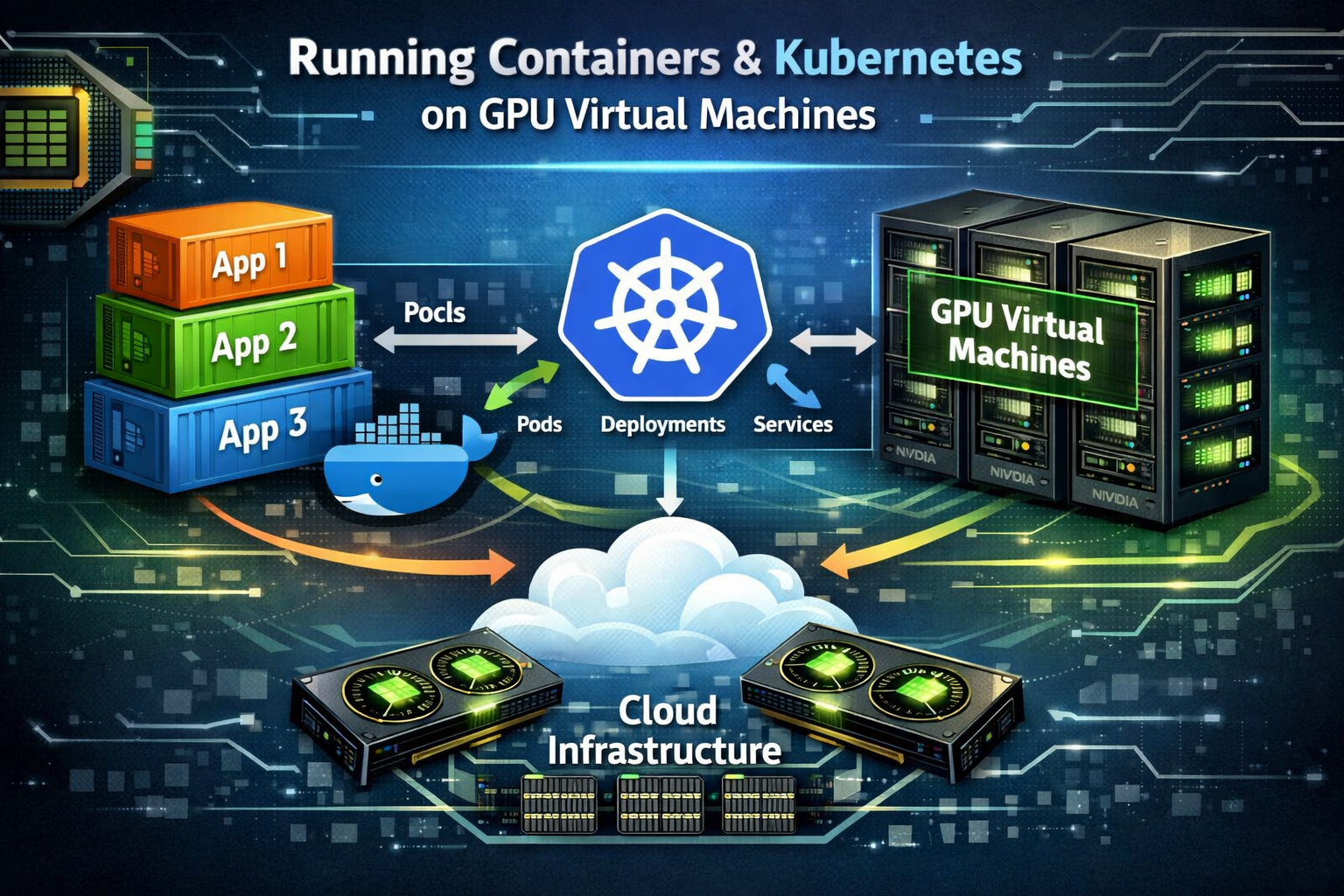
2. GPU Virtual Machines vs Container-Native GPUs
Role of GPU VMs in Containerized Environments
GPU Virtual Machines (VMs) provide the hardware foundation for running GPU workloads in the cloud. In a containerized environment, platforms like Kubernetes schedule containers on these GPU-enabled VMs.
In simple terms:
- The GPU VM provides the actual GPU hardware.
- The container packages the application.
- The orchestrator (like Kubernetes) manages and schedules workloads.
GPU VMs act as resource pools. Containers request GPU resources, and the system assigns them from available GPU VMs. This allows multiple AI workloads (training, inference, batch jobs) to share the same infrastructure efficiently.
Bare Metal vs GPU VM for Container Workloads
Bare Metal (Physical Server with GPU):
- Direct access to hardware
- Slightly better raw performance
- No virtualization layer
- Requires manual setup and maintenance
- Higher upfront cost
GPU Virtual Machine:
- Runs on virtualized infrastructure
- Slightly small performance overhead
- Easier to scale up or down
- Faster deployment
- Managed by cloud provider
For most container workloads, GPU VMs are preferred because they provide flexibility and easier scaling, even if bare metal offers slightly higher performance.
When GPU VMs Make More Sense Than On-Prem GPUs
GPU VMs are usually better when:
- You need quick setup without buying hardware
- Workloads are temporary or variable
- You want pay-as-you-go pricing
- You need scaling on demand
- Your team does not want to manage physical hardware
On-prem GPUs make sense when:
- Workloads are constant and predictable
- You already own hardware
- You need maximum performance control
- Data must remain strictly on-site
In most modern AI environments, GPU VMs combined with containers provide better flexibility, scalability, and operational simplicity compared to traditional on-prem GPU setups.
3. Prerequisites for Running Containers on GPU VMs
Before running containers with GPU support, some basic requirements must be met. GPUs do not work automatically inside containers. Proper drivers and software must be installed on the host VM first.
Supported GPU Models and Drivers
Not all GPUs support compute workloads.
You need GPUs that support CUDA, such as:
- NVIDIA Tesla series
- NVIDIA A100, V100
- NVIDIA T4
- NVIDIA RTX (some models)
Cloud providers usually offer GPU VMs with supported NVIDIA data center GPUs.
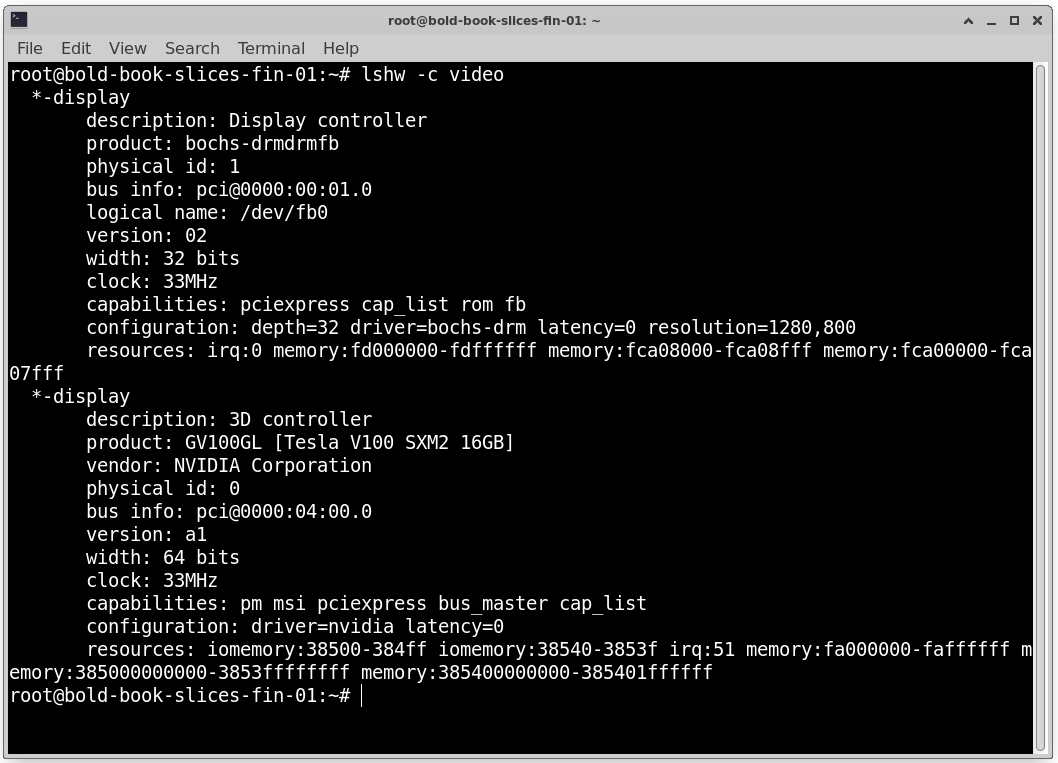
Always check the GPU model, supported driver version and CUDA compatibility.
Check GPU Model: lshw -c video
NVIDIA Driver Requirements
The NVIDIA driver must be installed on the GPU VM (host system).
Important points:
- Driver must match the GPU model
- Driver version must support the required CUDA version
- Drivers must be installed on the host, not inside the container
You can check if the driver is working by running: nvidia-smi
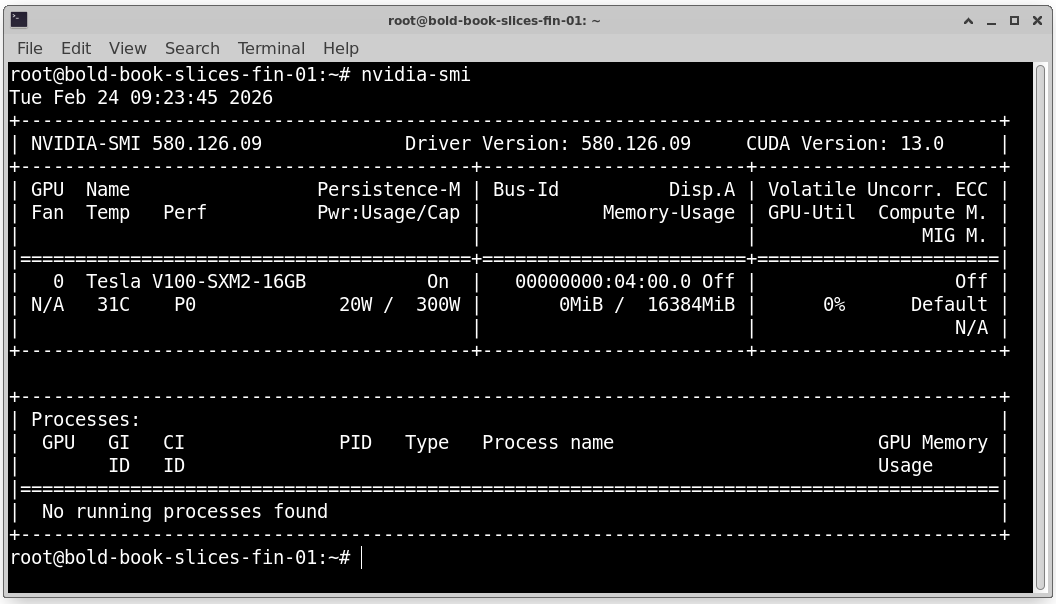
If installed correctly, it will show GPU model, Driver version and GPU memory usage. If this command fails, containers will not detect the GPU.
CUDA and cuDNN Compatibility Basics
CUDA is required for GPU compute workloads. cuDNN is used for deep learning acceleration.
Key compatibility rule:
- NVIDIA Driver ≥ CUDA version required
- Container CUDA version must be supported by host driver
Example: If the container uses CUDA 12, the host driver must support CUDA 12.
Mismatch between driver version, CUDA version and Deep learning framework can cause runtime errors. Always check NVIDIA’s CUDA compatibility matrix before deployment.
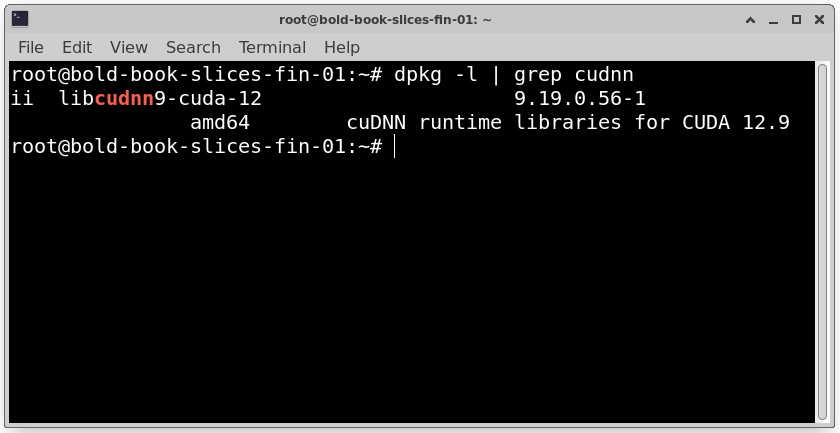
Verify cuDNN Version: dpkg -l | grep cudnn
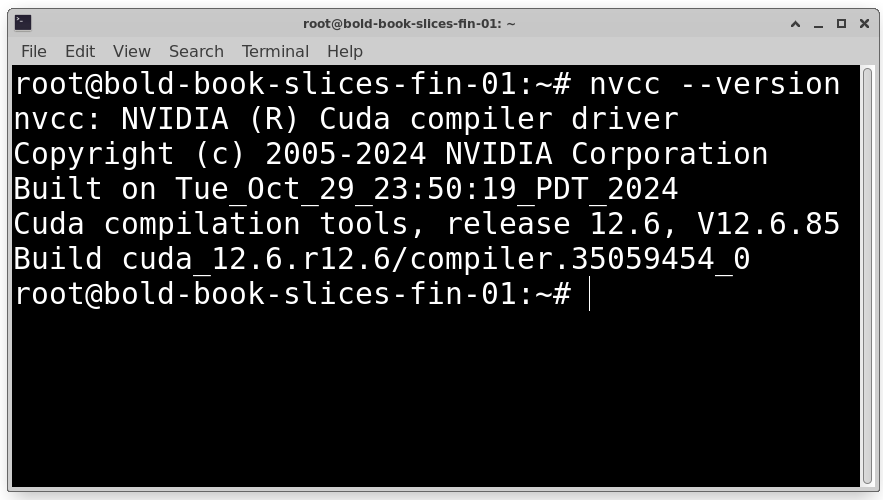
Check Installed CUDA Toolkit Version: nvcc –version
OS Considerations (Ubuntu, AlmaLinux, etc.)
The operating system must support NVIDIA drivers,,Docker or container runtime and NVIDIA Container Toolkit.
Common supported OS options:
- Ubuntu (most popular and recommended)
- AlmaLinux
- Rocky Linux
- CentOS (older deployments)
Ubuntu is widely used because of better documentation, strong community support and easier NVIDIA installation process.
Make sure the kernel version supports the GPU driver and the system is fully updated before installing drivers.
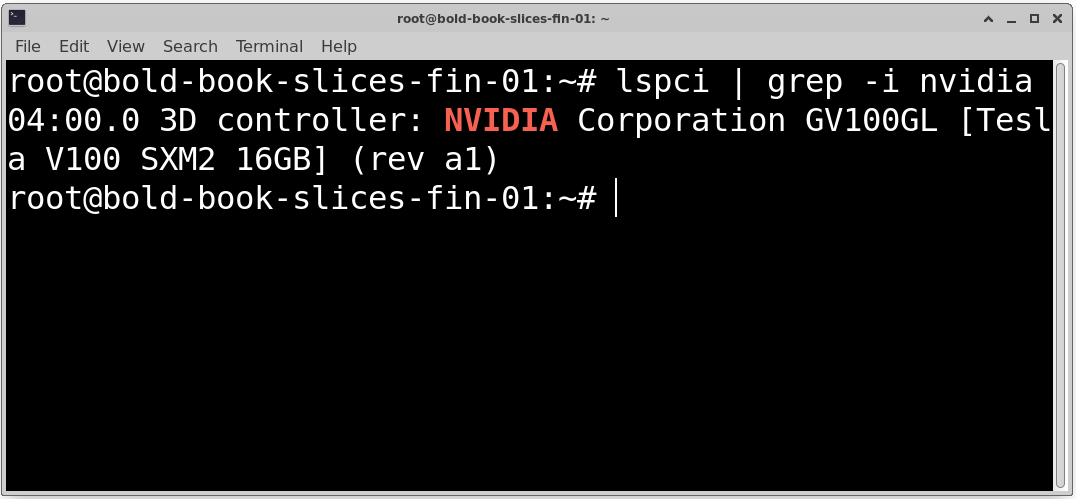
Confirm Kernel Is Supported by NVIDIA Driver: lspci | grep -i nvidia
4. GPU Enablement for Containers
By default, containers do not have access to the GPU. Extra configuration is required.
Why GPUs Don’t Work in Containers by Default
Containers are isolated environments. They do not automatically have access to Host hardware, GPU devices and NVIDIA drivers. Even if the host has a GPU, containers cannot use it unless it is explicitly exposed. This isolation improves security but requires special configuration for GPU workloads.
NVIDIA Container Toolkit Overview
The NVIDIA Container Toolkit allows containers to use GPUs. It connects container runtime with NVIDIA drivers, passes GPU devices into the container and mounts required driver libraries inside the container. Without this toolkit, GPU-based containers will fail. After installation, Docker can run GPU-enabled containers using:
docker run –gpus all image_name
How GPU Pass-Through Works for Containers
GPU pass-through allows the container to access /dev/nvidia* device files, NVIDIA driver libraries and GPU hardware resources.
The host driver remains installed on the VM. The container uses those drivers via shared libraries. The GPU is not virtualized. It is directly shared with the container. Kubernetes works similarly by advertising GPUs as resources and scheduling pods that request GPUs.
Verifying GPU Access Inside a Container
After setup, test GPU access.
Run a test container: docker run –gpus all nvidia/cuda:11.1.1-cudnn8-runtime nvidia-smi
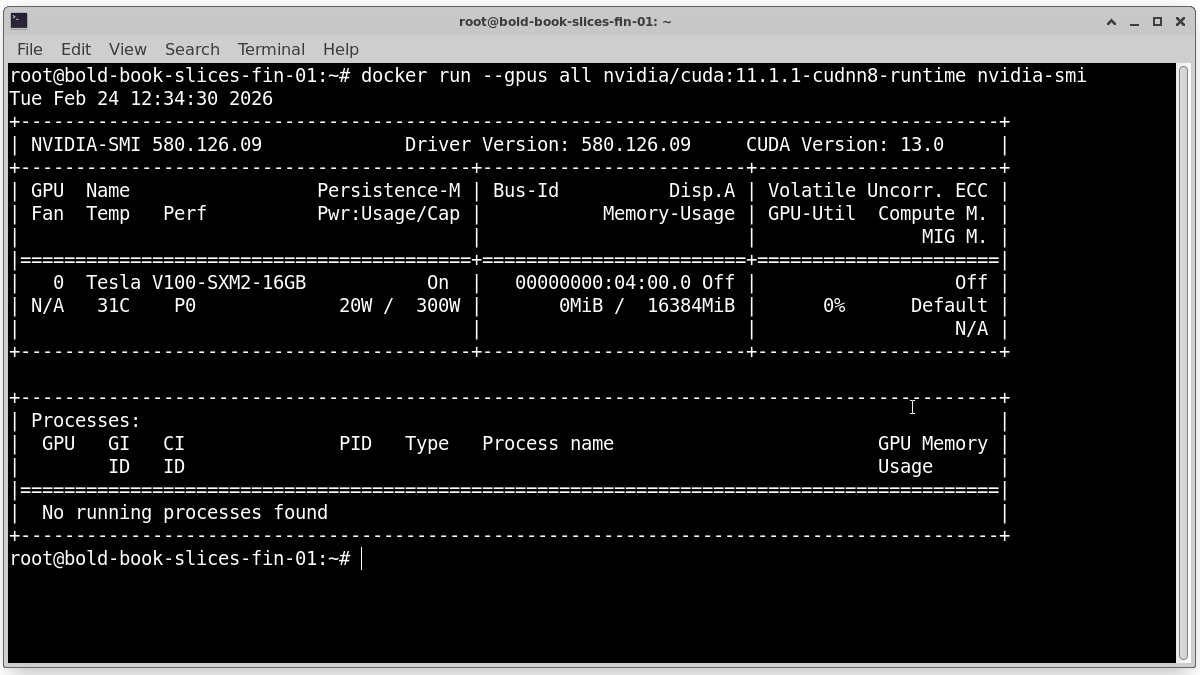
If configured correctly, you will see the GPU name, Driver version and CUDA version. This confirms the container can access the GPU.
If it fails check the NVIDIA driver, check the NVIDIA Container Toolkit, and restart Docker service.
5. Running GPU Workloads with Docker
Docker is one of the easiest ways to run GPU workloads on a GPU VM. Once your NVIDIA drivers and NVIDIA Container Toolkit are installed, you can start running AI containers.
Installing Docker on GPU VMs
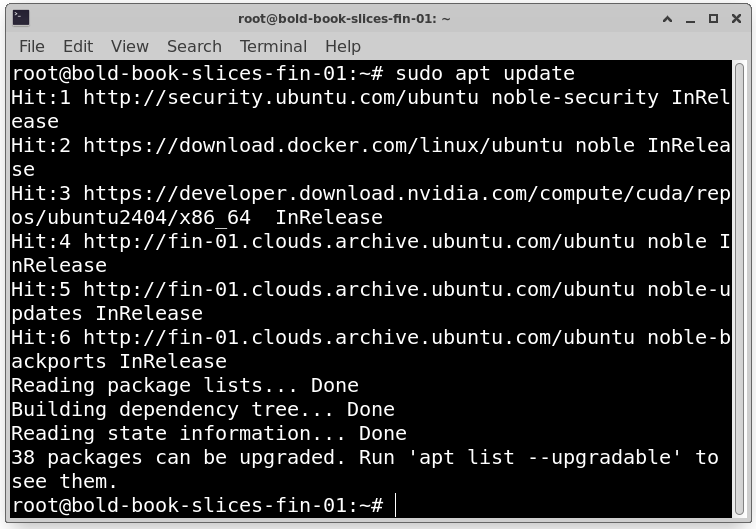
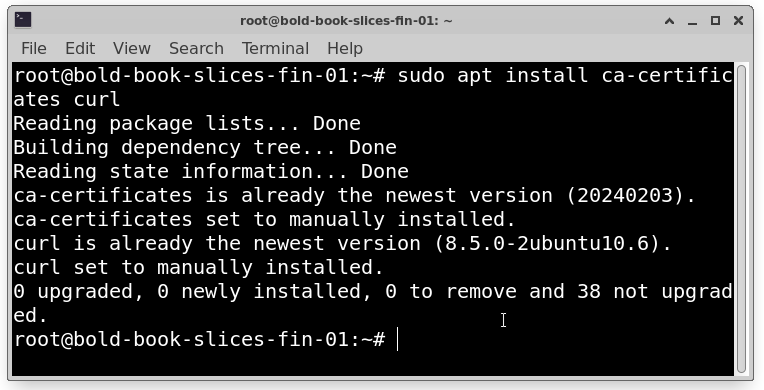
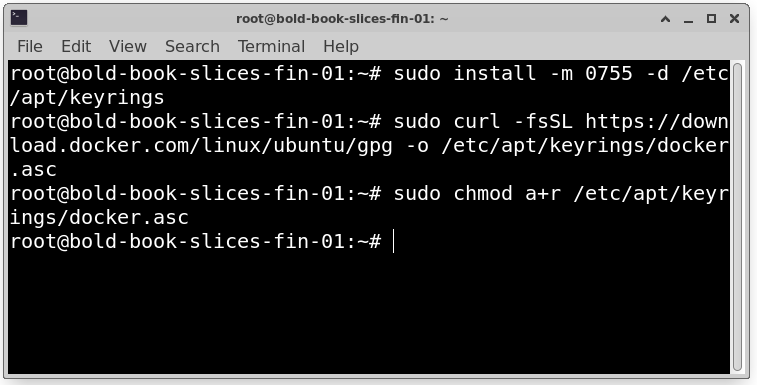
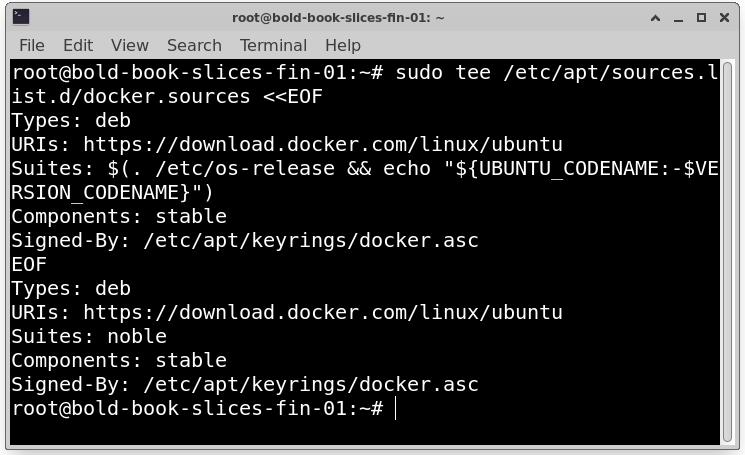
On most Linux systems (like Ubuntu), install Docker using:
sudo apt update
sudo apt install ca-certificates curl
sudo install -m 0755 -d /etc/apt/keyrings
sudo curl -fsSL https://download.docker.com/linux/ubuntu/gpg -o /etc/apt/keyrings/docker.asc
sudo chmod a+r /etc/apt/keyrings/docker.asc
# Add the repository to Apt sources:
sudo tee /etc/apt/sources.list.d/docker.sources <<EOF
Types: deb
URIs: https://download.docker.com/linux/ubuntu
Suites: $(. /etc/os-release && echo “${UBUNTU_CODENAME:-$VERSION_CODENAME}”)
Components: stable
Signed-By: /etc/apt/keyrings/docker.asc
EOF
sudo apt update
sudo apt install docker-ce docker-ce-cli containerd.io docker-buildx-plugin docker-compose-plugin
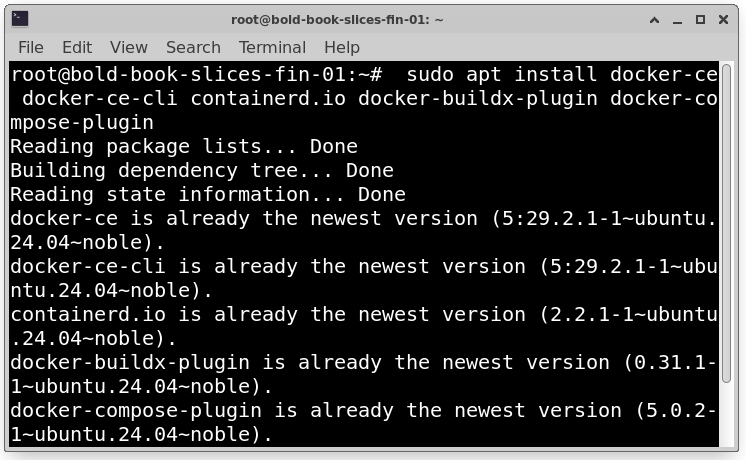
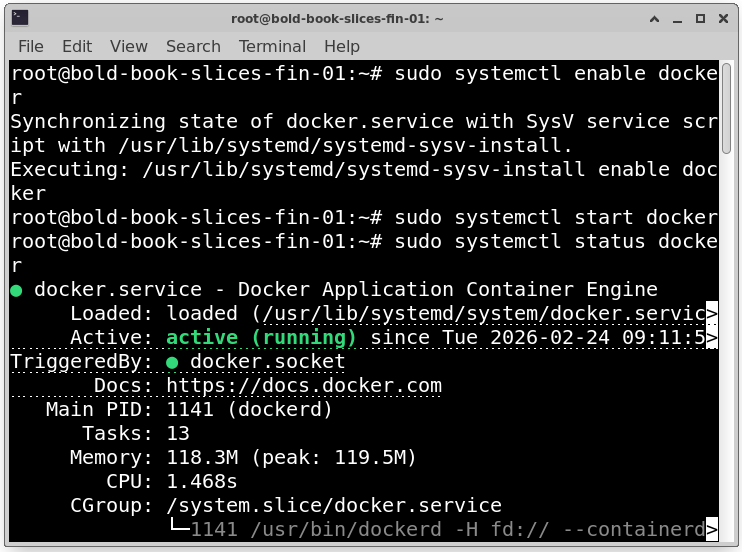
Then enable and start Docker:
sudo systemctl enable docker
sudo systemctl start docker
sudo systemctl status docker
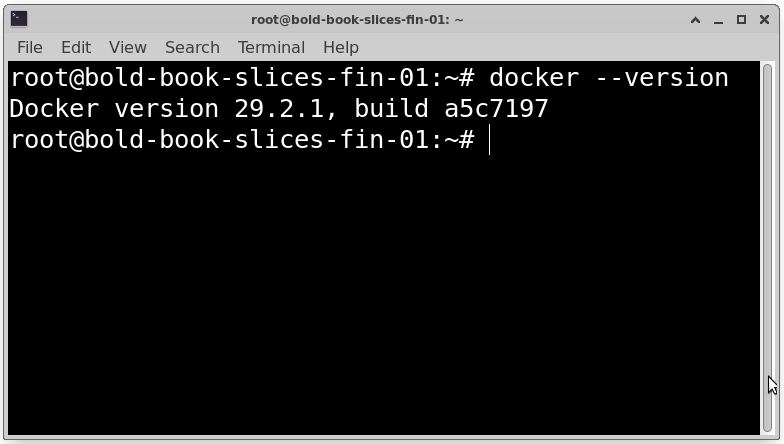
Verify installation:
docker –version
Docker must be installed before configuring GPU support.
Configuring Docker to Use GPUs
After installing NVIDIA driver and NVIDIA Container Toolkit restart Docker:
sudo systemctl restart docker
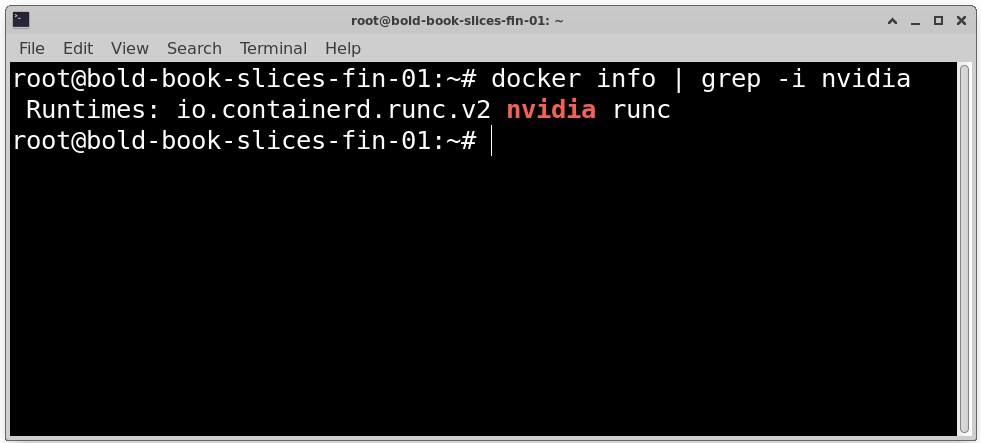
Now Docker can access GPUs through the NVIDIA runtime.
Test if NVIDIA runtime is available: docker info | grep -i nvidia
Test GPU access:
docker run –gpus all -it nvidia/cuda:13.1.1-cudnn-devel-ubuntu24.04 nvidia-smi
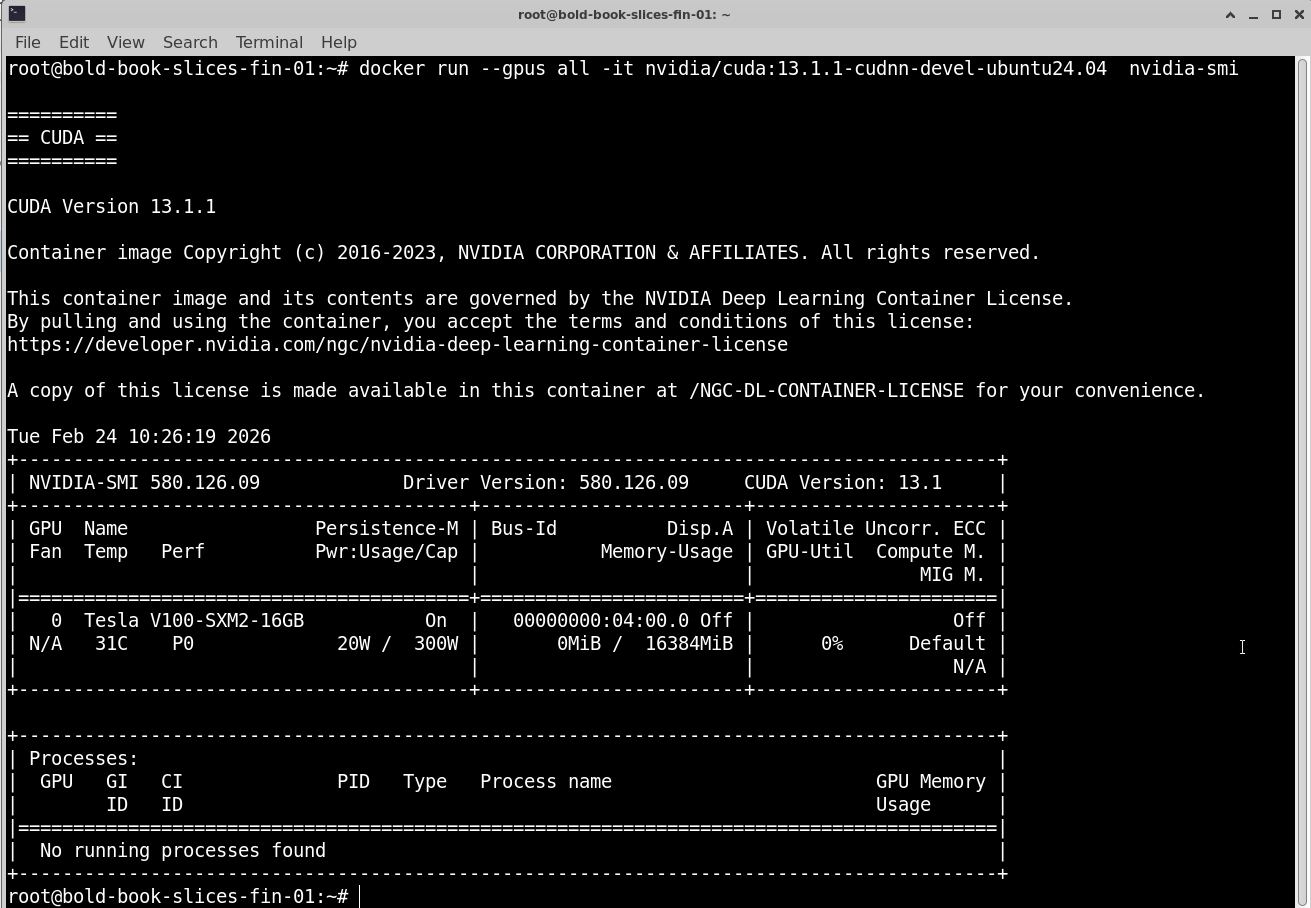
If it shows GPU details, the configuration is correct.
Common Docker Images for AI/ML Workloads
Popular GPU-ready images include NVIDIA CUDA base images, PyTorch images, TensorFlow images and Jupyter notebook images with GPU support. These images already include CUDA libraries and required dependencies. They reduce setup time and prevent compatibility issues.
Container Runtime Performance Considerations
When running GPU containers:
- GPU performance is near-native
- Minimal virtualization overhead
- CPU and disk speed still matter
- Network performance impacts distributed training
Best practices use SSD storage, allocate enough CPU and RAM and avoid running too many GPU containers on one GPU. Proper resource planning improves performance.
Container Images for GPU Workloads
Choosing the right container image is important for stability and performance.
Using Official NVIDIA CUDA Images
Official CUDA images are provided by NVIDIA and include CUDA runtime, Development libraries and Compatible drivers.
https://hub.docker.com/r/nvidia/cuda
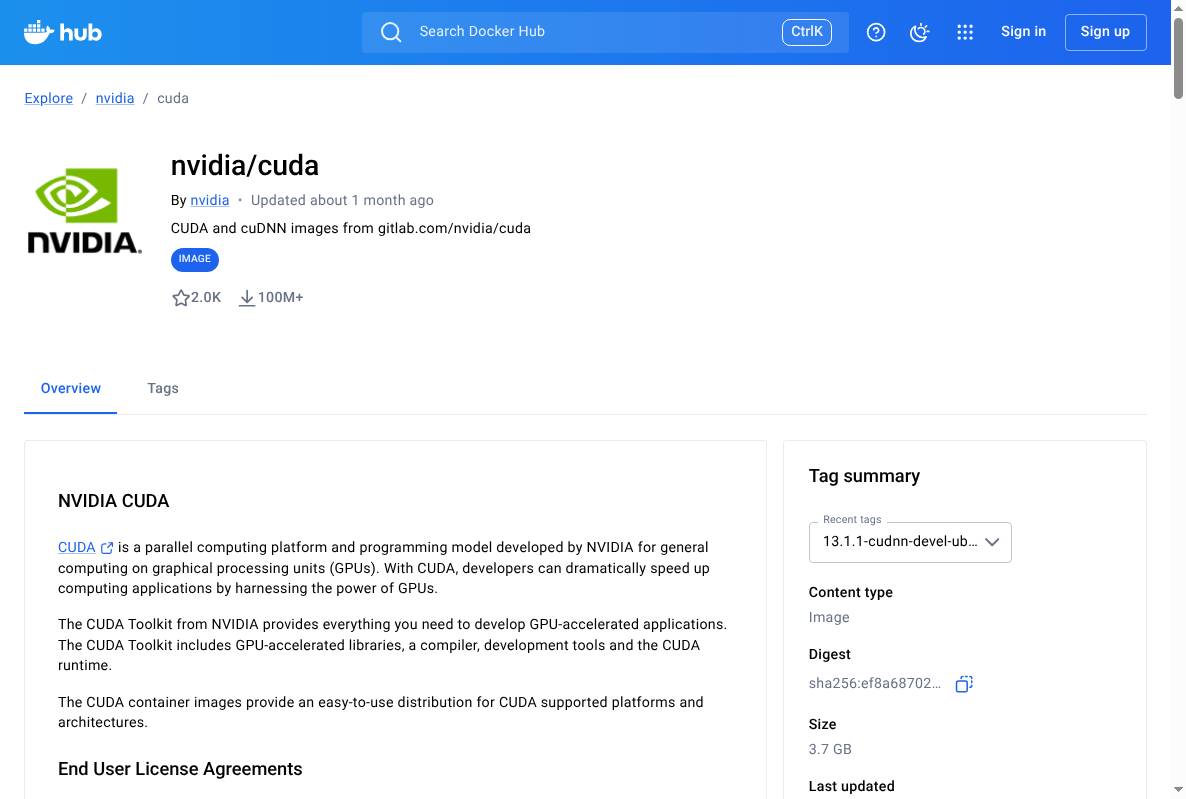
They are good base images for Custom AI applications, Framework installations and Testing GPU access, They ensure CUDA compatibility with drivers.
Framework-Specific Images (PyTorch, TensorFlow)
Instead of building from scratch, you can use ready-made framework images such as PyTorch with CUDA support or TensorFlow GPU versions.
These images already include CUDA, cuDNN and Framework libraries. They are useful for Training deep learning models, Running inference and Research experiments. They save time and reduce setup errors.
Custom Image Best Practices
When building your own GPU image Use official CUDA base image, Install only required packages, Pin specific versions of libraries and Keep image clean and minimal. Avoid installing unnecessary tools. Smaller images start faster, use less storage, deploy quicker.
Image Size, Layers, and Startup Performance
Container images are built in layers. Each command in a Dockerfile creates a new layer. Best practices combine commands where possible, remove temporary files and use slim base images.
Large images take longer to pull, increase deployment time and slow down scaling. Optimized images improve startup speed, especially in Kubernetes clusters.
7. Kubernetes Architecture for GPU Workloads
Kubernetes allows you to manage multiple GPU workloads across nodes in a cluster.
How Kubernetes Schedules GPU Resources?
Kubernetes treats GPUs as special resources. When a pod requests a GPU Kubernetes finds a node with available GPU, schedules the pod there and reserves the GPU for that pod. This prevents resource conflicts.
GPU as an Extended Resource
In Kubernetes, GPUs are not standard CPU or memory resources. They are added as extended resources, such as:
nvidia.com/gpu
When defining a pod:
resources:
limits:
nvidia.com/gpu: 1
This tells Kubernetes the pod requires one GPU.
Node-Level GPU Allocation
GPUs are attached to specific nodes. Kubernetes does not split GPUs like CPU cores (unless using special GPU partitioning like MIG).
This means one pod typically gets one full GPU, GPU cannot be shared unless configured and scheduling depends on available GPUs per node. If no GPU is free, the pod remains pending.
Differences Between CPU and GPU Scheduling
CPU scheduling:
- CPUs are shared
- Can allocate fractions (e.g., 0.5 CPU)
- Multiple pods share CPU cores
GPU scheduling:
- GPUs are allocated as whole units
- Typically not shared by default
- More strict allocation rules
Because GPUs are expensive and limited, Kubernetes scheduling must carefully manage them.
8. NVIDIA Device Plugin for Kubernetes
Why the Device Plugin Is Required?
Kubernetes does not detect GPUs automatically. Even if the node has a GPU and drivers installed, Kubernetes cannot use it without a special component.
The NVIDIA Device Plugin allows Kubernetes to discover GPUs on each node, advertise them as resources and assign them to pods. Without this plugin, GPU scheduling will not work.
How It Exposes GPUs to Kubernetes
The device plugin runs on every GPU node. It communicates with the NVIDIA driver, detects available GPUs and registers them as a resource like: nvidia.com/gpu
Kubernetes then knows how many GPUs are available per node.
Installation Approaches
- DaemonSet (Common Method): The plugin runs as a DaemonSet. This ensures one instance runs on every GPU node.
- Helm Chart: Helm simplifies installation and upgrades. It is useful in production clusters.
Both methods achieve the same goal, exposing GPUs to Kubernetes.
Verifying GPU Availability in Pods
After installation check nodes: kubectl describe node <node-name>
You should see: nvidia.com/gpu: 1
Run a test pod requesting a GPU and execute: nvidia-smi
If GPU details appear, the setup is correct.
9. Scheduling and Resource Management
Requesting GPUs in Pod Specs
In your pod YAML file:
resources:
limits:
nvidia.com/gpu: 1
This tells Kubernetes the pod requires one GPU.
GPU Limits vs Requests
For GPUs only limits are typically used, requests must equal limits. Unlike CPUs, GPUs cannot be overcommitted by default.
Preventing GPU Oversubscription
Kubernetes prevents multiple pods from using the same GPU unless special sharing is configured.
This ensures stable performance, no resource conflicts and fair scheduling.
Multi-Tenant GPU Isolation
In shared clusters use namespaces, apply resource quotas and use node selectors or taints. This separates workloads between teams and prevents misuse.
10. Running AI/ML Workloads on Kubernetes
Training Jobs vs Inference Services
Training Jobs heavy GPU usage, run for hours or days and often use multiple GPUs.
Inference Services serve predictions, low latency required and scale based on traffic.
Batch Jobs, CronJobs, and Long-Running Pods
- Jobs → Run once and exit
- CronJobs → Run on schedule
- Deployments → Long-running services
Training is often run as Jobs. Inference is usually run as Deployments.
Model-Serving Patterns (REST / gRPC)
Common approaches REST API and gRPC services. Model servers expose endpoints for prediction requests.
Autoscaling Considerations
Autoscaling can be based on CPU usage, custom metrics and request count. GPU-based autoscaling is more complex because GPUs are limited and expensive.
11. Multi-GPU and Distributed Workloads
Using Multiple GPUs in a Single Pod
You can request more than one GPU:
limits:
nvidia.com/gpu: 2
The container can then use 2 GPUs on that node.
Distributed Training Across Nodes
Large models require multiple nodes. Each node provides GPUs. Training is synchronized across nodes.
NCCL and Inter-Node Communication
NCCL is commonly used for GPU communication. It enables fast GPU-to-GPU data transfer and efficient gradient sharing. High-speed networking is required.
Network Requirements
Distributed workloads need high bandwidth, low latency and 10Gbps or higher recommended. Slow networks reduce training efficiency.
12. Performance Considerations and Optimization
Container Overhead on GPU Workloads
Container overhead is minimal. GPU performance inside containers is nearly the same as native.
CPU, Memory, and Storage Impact
GPU workloads still depend on CPU for data preprocessing, RAM for loading datasets and fast storage (SSD/NVMe). Poor storage slows down training.
NUMA and PCIe Considerations
GPUs connect via PCIe. For best performance align CPU and GPU locality and avoid cross-NUMA traffic. This improves throughput.
Benchmarking Containerized GPU Workloads
Use tools like: nvidia-smi, Framework benchmarks or Monitoring tools
Compare GPU utilization, memory usage and training time. This helps optimize resource allocation.
13. GPU Sharing and Advanced Scheduling
Time-Slicing vs Full GPU Allocation
Full Allocation:
- One pod = one GPU
- Best performance
- Strong isolation
Time-Slicing:
- Multiple pods share GPU
- Better utilization
- Slight performance impact
NVIDIA vGPU and MIG Overview
vGPU stands for Virtual GPU instances. It is used in virtualized environments.
MIG stands for Multi-Instance GPU. Splits one GPU into multiple logical GPUs and provides hardware-level isolation. It is useful for multi-tenant clusters.
When GPU Sharing Makes Sense
GPU sharing is beneficial in scenarios where full GPU capacity is not required by a single workload. Since GPUs are expensive and powerful resources, allocating an entire GPU to a small task can lead to underutilization. In such cases, sharing allows better efficiency and cost optimization.
GPU sharing makes sense in the following situations:
1. Lightweight Workloads: If applications use only a small portion of GPU memory and compute power, assigning a full GPU is unnecessary.
2. Small Inference Tasks: Inference workloads often require less GPU power compared to model training. For example, serving predictions for smaller models or handling low traffic applications may not fully utilize a GPU. In such cases, multiple inference services can safely share a single GPU, improving overall utilization.
3. Development and Testing Environments: Development teams usually need GPU access for experimentation, debugging, or testing code changes. These workloads are often short-lived and do not require full GPU performance.
Sharing GPUs in development environments reduces infrastructure costs while still providing necessary access.
Trade-Offs of GPU Sharing
While GPU sharing improves utilization, it also introduces certain trade-offs. It is important to understand the balance between efficiency and performance.
More Sharing
When multiple workloads share a GPU:
- Higher Utilization: More of the GPU’s compute and memory capacity is used, reducing idle resources.
- Lower Isolation: Workloads may compete for GPU resources, which can affect performance stability. If one workload spikes in usage, others may experience slowdowns.
This approach is ideal for cost-sensitive or non-critical workloads.
Less Sharing (Dedicated GPU Allocation):
When a GPU is dedicated to a single workload:
- Better Performance: The application gets full access to GPU resources, ensuring consistent and predictable performance.
- Higher Cost: Some GPU capacity may remain unused, leading to lower overall utilization and higher infrastructure cost per workload.
This approach is best for production training jobs, latency-sensitive inference services, and mission-critical applications.
14. Monitoring and Observability
Monitoring and observability are critical when running GPU workloads in containers. GPUs are expensive resources, and without proper monitoring, they can easily become underutilized, overheated, or overloaded. A well-designed monitoring system helps ensure stability, performance, and cost efficiency across your Kubernetes cluster.
Monitoring GPU Usage in Containers
Monitoring GPU usage allows you to avoid idle GPUs and maximize return on investment, identify overheating, memory exhaustion, or abnormal behavior before failures occur and track how GPUs are being used and eliminate waste from unused or oversized allocations.
In Kubernetes environments, GPU monitoring should cover both:
- Node-level metrics (physical GPU health and performance)
- Pod-level metrics (which workload is consuming GPU resources)
This visibility helps administrators understand how workloads behave in real time.
Key Metrics to Track
Tracking the right metrics is essential for performance tuning and troubleshooting.
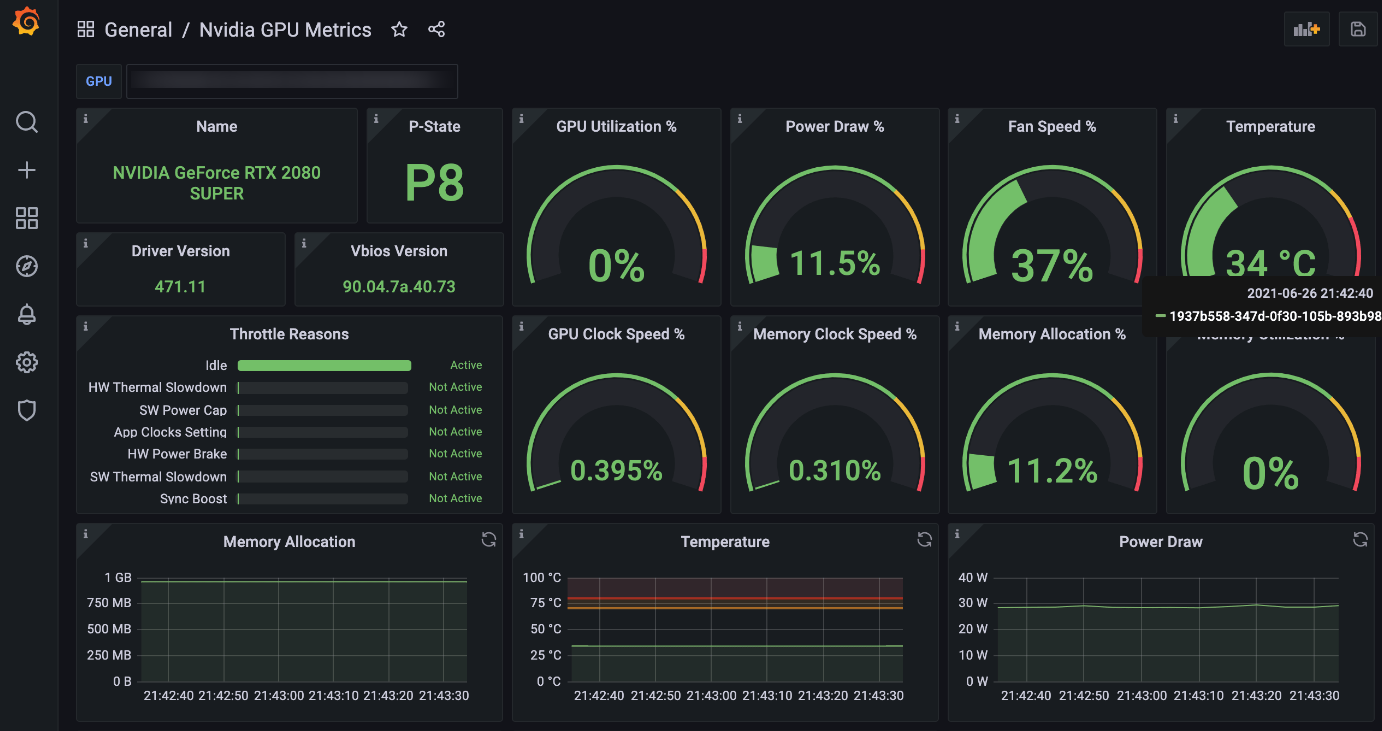
- GPU Utilization (%): Shows how much of the GPU compute capacity is being used. Low utilization may indicate inefficient workloads or oversized allocations. High sustained utilization may signal resource saturation.
- GPU Memory Usage: Tracks how much GPU memory (VRAM) is consumed. Out-of-memory errors can crash training or inference jobs.
- Temperature: High GPU temperatures may indicate insufficient cooling, heavy sustained workloads and hardware issues. Monitoring temperature helps prevent hardware damage.
- Power ConsumptionL Helps analyze performance efficiency, energy usage patterns and cost optimization opportunities.
- Pod-Level Resource Usage: It is important to map GPU usage to specific Kubernetes pods. This helps identify which workload is consuming GPU resources, whether resource limits are correctly configured and If scaling adjustments are needed.
Logging and Alerting
Monitoring alone is not enough. You must configure alerts to react quickly to issues.
Set Alerts For:
- High GPU temperature
- Low GPU utilization (indicating waste)
- Out-of-memory (OOM) errors
- Node failures or GPU crashes
Proactive alerts allow teams to respond before workloads fail. Logs also play an important role in troubleshooting:
- Framework logs help diagnose model crashes
- Kubernetes logs show pod failures
- Node logs reveal driver or hardware issues
Combining logs with metrics provides complete observability.
Popular Tools and Exporters
Several tools are commonly used to monitor GPU workloads in Kubernetes environments.
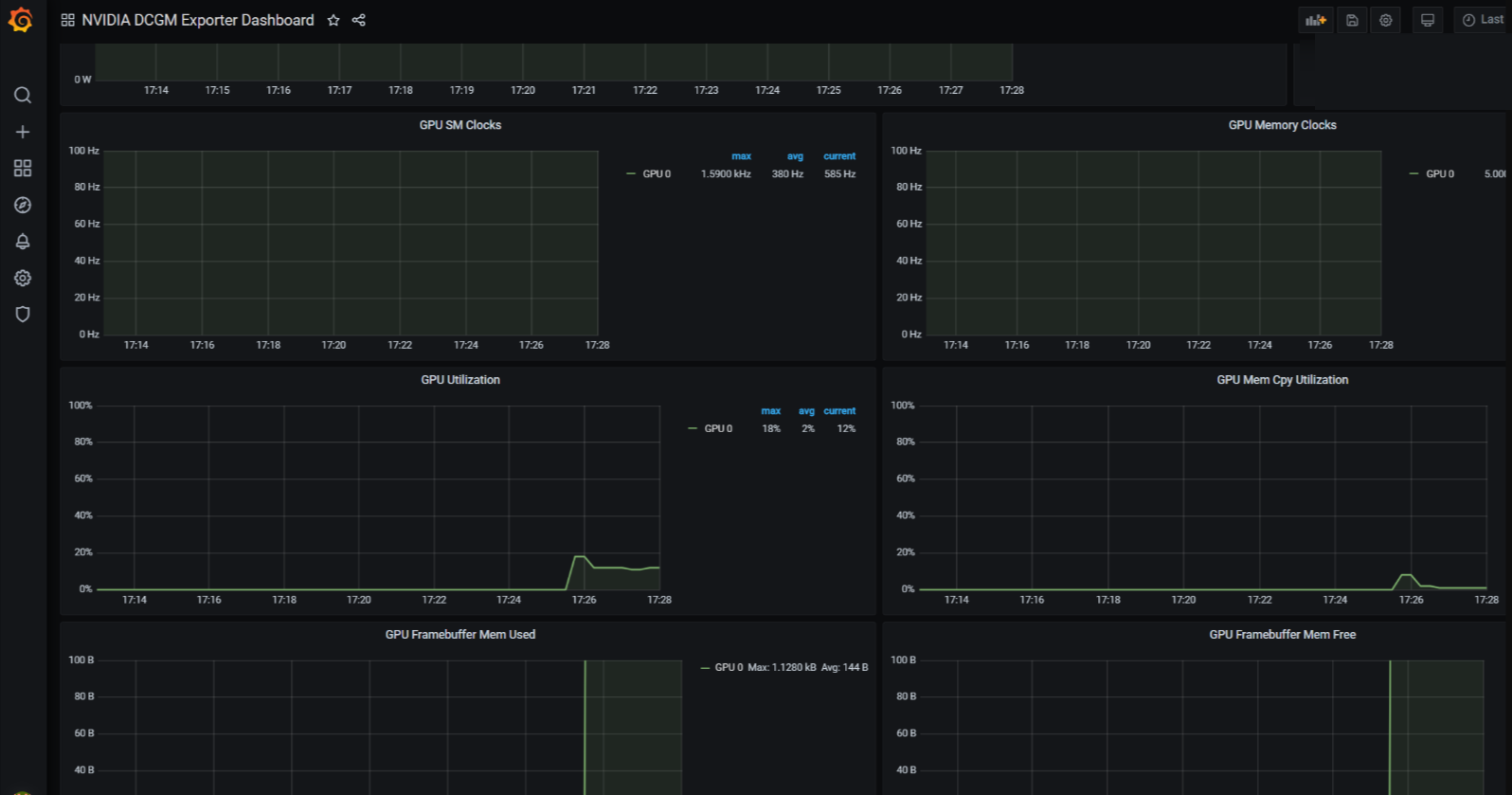
NVIDIA DCGM Exporter: Collects GPU metrics directly from NVIDIA drivers. Exposes metrics for monitoring systems.
Prometheus: Scrapes metrics from exporters and stores time-series data.
Widely used in Kubernetes environments.
Grafana: Provides dashboards and visualizations. Displays GPU utilization, memory, temperature, and more.
Kubernetes Metrics Server: Collects basic CPU and memory metrics for pods and nodes. Used for autoscaling decisions.
Together, these tools provide dashboards, monitoring, and alerting for GPU clusters.
15. Security and Isolation in Containerized GPU Environments
Security is critical when running GPU workloads in shared environments. Since GPUs are powerful and expensive resources, proper isolation and access control must be enforced.
Container Isolation vs VM Isolation
Virtual Machines (VMs):
- Provide strong isolation
- Each VM has its own kernel
- Better separation between tenants
Containers:
- Share the host kernel
- Lightweight and fast
- Less isolated than VMs by default
In GPU environments, containers rely on the host system for drivers and device access. This makes security configuration very important.
If strict isolation is required (for example, in multi-tenant or enterprise environments), combining VMs and containers is often recommended.
Risks of GPU Device Access
When a container is given GPU access, it can interact with: /dev/nvidia* device files, driver-level resources and GPU memory.
Potential risks include resource abuse, data leakage between workloads and denial-of-service from heavy GPU usage. Improper configuration may allow containers more access than intended.
Securing Container Runtimes
To improve security:
- Avoid running containers as root
- Use minimal base images
- Keep NVIDIA drivers updated
- Limit privileged container access
- Apply security profiles (AppArmor or seccomp)
Do not grant GPU access unless required. Only trusted workloads should receive GPU resources.
Role of RBAC and Namespaces
In Kubernetes, security is controlled through:
RBAC (Role-Based Access Control):
- Controls who can create pods
- Limits who can request GPU resources
- Restricts administrative actions
Namespaces:
- Separate teams or environments
- Apply resource quotas
- Control GPU consumption per team
Together, RBAC and namespaces prevent unauthorized GPU usage and enforce workload separation.
16. Failure Scenarios and Troubleshooting
Even with a proper setup, GPU workloads in Kubernetes can sometimes fail. Because GPUs involve drivers, container runtimes, Kubernetes components, and hardware, issues can occur at multiple layers. Understanding common failure scenarios helps reduce downtime and speeds up troubleshooting.
GPU Not Visible in Containers:
One of the most common problems is when the GPU is not accessible inside a container.
If running the following command inside a container fails: nvidia-smi
It usually means the GPU is not properly exposed to the container.
Possible Causes
- NVIDIA driver is not installed on the host
- NVIDIA Container Toolkit is missing
- NVIDIA device plugin is not running in Kubernetes
- Docker is not configured with GPU support
Step-by-Step Checks
1. Check GPU on the Host First: Run on the VM (not inside container):
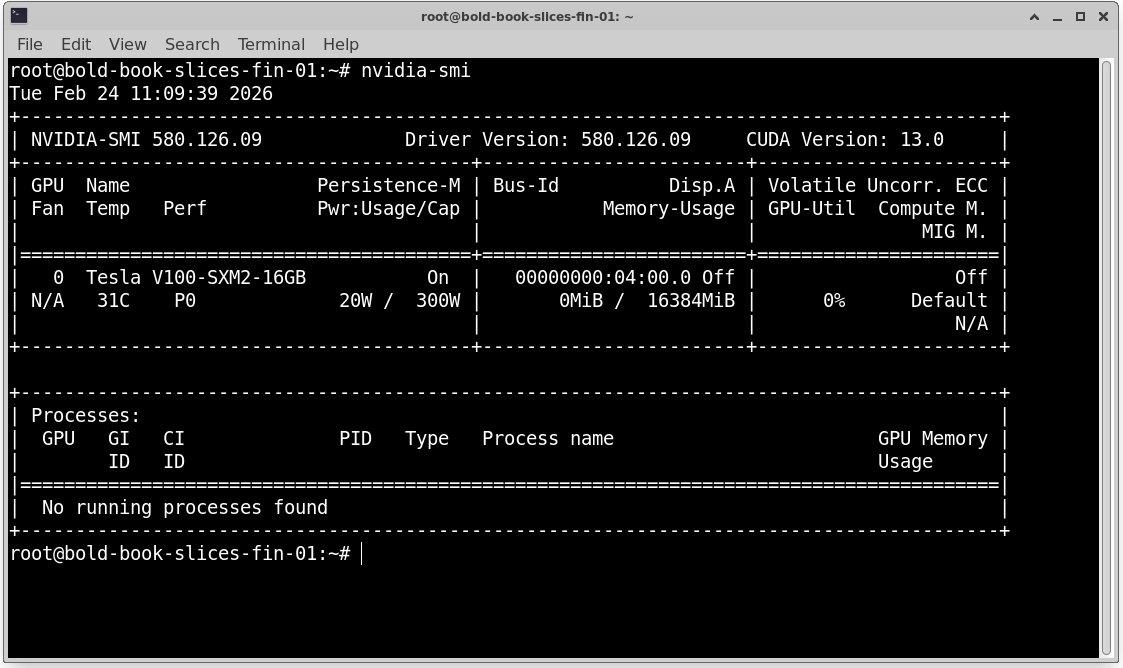
nvidia-smi
If this fails, the issue is at the driver level. Install or reinstall the NVIDIA driver.
2. Verify NVIDIA Container Toolkit: Ensure the toolkit is installed and Docker is restarted.
Check installed package (Ubuntu): dpkg -l | grep -i nvidia-container
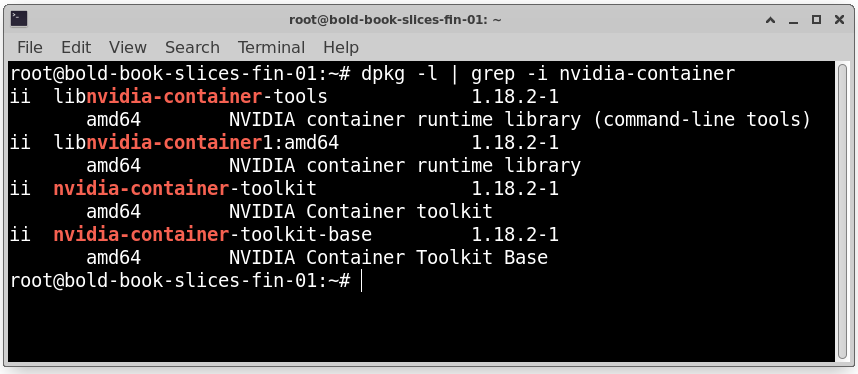
3. Check Device Plugin in Kubernetes:Verify that the NVIDIA device plugin pod is running:
kubectl get pods -n kube-system
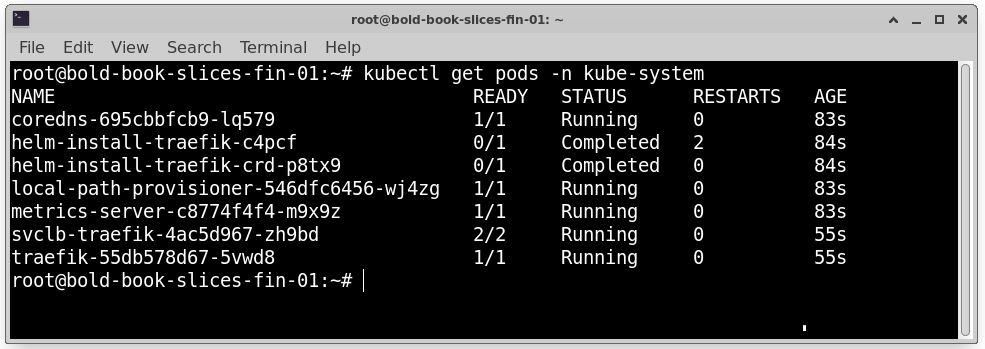
4. Confirm GPU Resource Is Registered: Run:
kubectl describe node <node-name>
Make sure you see: nvidia.com/gpu
If it is not listed, Kubernetes cannot schedule GPU workloads.
Pods Stuck in Pending State
Another common issue is when a GPU pod remains in Pending state and never starts.
Common Reasons
- No available GPUs on the cluster
- NVIDIA device plugin not installed
- Incorrect resource request in pod YAML
- Node selector or taint mismatch
Troubleshooting Steps
Check pod events: kubectl describe pod <pod-name>
Look for messages such as “Insufficient nvidia.com/gpu” or “0/3 nodes available”.
Then verify node resources: kubectl describe node <node-name>
Ensure nvidia.com/gpu is listed and available.
If GPUs are fully allocated, you may need to wait for a GPU to free up, add more GPU nodes or reduce GPU requests.
Driver and CUDA Mismatches
Driver and CUDA compatibility is critical.
Errors often occur when the container CUDA version is higher than host driver supports and host driver version is outdated.
Important Rule: Host driver version must be greater than or equal to the required CUDA version inside the container.
Example: If a container uses CUDA 12, the host driver must support CUDA 12.
Mismatch can cause runtime errors, library loading failures or silent crashes. Always verify compatibility using NVIDIA’s CUDA compatibility matrix before deployment.
Debugging GPU Crashes in Kubernetes
If GPU workloads crash after starting, deeper investigation is required.
Step 1: Check Pod Logs: kubectl logs <pod-name>
Look for: CUDA errors, Out-of-memory (OOM) errors and Segmentation faults.
Step 2: Check Node Logs: journalctl -u kubelet
This may show device plugin failures, container runtime errors and node instability.
Step 3: Verify GPU Health
Run on the node: nvidia-smi
Look for GPU memory exhaustion, high temperature, GPU reset events and hardware errors. Monitoring tools can help detect recurring GPU failures and performance drops.
17. Cost Management and Efficiency
GPU infrastructure is expensive. Without proper planning, costs can increase quickly. Efficient resource usage is essential for sustainable operations.
GPU Cost Drivers in Kubernetes
Major cost factors include GPU type (for example, A100 is much more expensive than T4), Number of GPUs per node, Idle time, Storage and network usage and Long-running idle pods.
Even if a pod is idle but still requesting a GPU, you are paying for that allocation. Unused GPU time significantly increases operational costs.
Avoiding Idle GPUs
To reduce wasted GPU resources use cluster autoscaling, shut down unused GPU nodes, monitor GPU utilization regularly and use job queues for batch workloads.
If GPUs show consistently low utilization, consider consolidating workloads, reducing node size and enabling GPU sharing.
Right-Sizing Nodes and Pods
Over-allocation leads to waste.
For example:
- A small inference model may only require 1 GPU
- A large distributed training job may require multiple GPUs
Always match GPU requests to actual workload needs.
Proper resource requests improve utilization, prevent overspending, and improve scheduling efficiency.
Spot / Preemptible GPU Nodes
Many cloud providers offer discounted GPU virtual machines under special pricing models such as Spot instances or Preemptible nodes. These instances provide the same GPU hardware as regular on-demand instances but at a much lower price.
The lower cost comes with a trade-off: the cloud provider can terminate (stop) these instances at any time when capacity is needed elsewhere.
What Are Spot and Preemptible GPU Nodes?
- Spot Instances: Discounted instances that can be interrupted when demand increases.
- Preemptible Nodes: Short-lived instances that run at a reduced price but may automatically shut down after a fixed time or when the provider reclaims resources.
Both options are designed for workloads that can handle interruptions.
Advantages
- Significantly Lower Cost: Spot or preemptible GPU nodes can cost much less than standard GPU instances. This makes them very attractive for organizations running large AI training workloads.
- Ideal for Batch Training Jobs: Training jobs that run for several hours and can restart from checkpoints are good candidates. If the node is terminated, the job can resume from the last saved state.
- Suitable for Fault-Tolerant Workloads: Workloads that are designed to handle failures—such as distributed training frameworks with checkpointing, can run efficiently on spot nodes without major issues.
Disadvantages
1. Can Be Terminated at Any Time: The biggest drawback is unpredictability. The cloud provider may shut down the instance with short notice.
This can interrupt Long-running jobs without checkpoints and real-time processing tasks.
2. Not Reliable for Critical Inference Services: Production inference systems that require High availability, Low latency and continuous uptime. should not depend on spot or preemptible GPU nodes.
Best Practice
Use spot or preemptible GPU nodes for non-critical training jobs, experimental workloads, batch processing tasks and restartable AI training with checkpointing.
Avoid using them for production inference APIs, customer-facing services and mission-critical applications.
A common strategy is to run baseline workloads on regular GPU nodes and use spot nodes to scale out training jobs when additional capacity is needed.
By combining both types wisely, organizations can significantly reduce GPU infrastructure costs while maintaining reliability where it matters most.
18. Best Practices for Production Deployments
Running GPU workloads in production requires careful planning to ensure reliability, reproducibility, and optimal performance. Following best practices helps avoid downtime and maximize GPU utilization.
1. Use Immutable Images:
Build container images once and avoid changing them in production. Immutable images ensure consistency across environments and help in reproducing experiments and debugging issues.
2. Pin CUDA and Driver Versions:
ismatched CUDA and NVIDIA drivers can cause runtime failures. Always specify exact versions in your Dockerfile and host driver installation.
Example: CUDA 12.1 → NVIDIA driver version ≥ 525.x
Pinning prevents incompatibility issues when updating containers or nodes.
3. Separate Training and Inference Clusters:
Training workloads: Long-running, GPU-intensive, batch-oriented
Inference workloads: Latency-sensitive, smaller GPU usage
Running them on separate clusters or node pools avoids resource contention and improves predictability.
4. Use Node Labels and Taints for GPU Nodes:
- Labels: Tag nodes with gpu=true for GPU workloads
- Taints: Prevent non-GPU workloads from being scheduled on GPU nodes
- Tolerations: Allow GPU pods to run on tainted nodes
This ensures proper scheduling, avoids accidental GPU resource usage, and improves cluster organization.
19. Provider-Specific Considerations for GPU VMs
When choosing GPU VMs from cloud providers, several factors can impact performance, cost, and reliability.
1. GPU Availability by Region:
Certain GPU models (A100, V100, T4, etc.) may be limited in specific regions. Check availability before provisioning. Multi-region deployments may be required for redundancy.
2. Network Bandwidth Limits:
Distributed AI training often requires high-speed inter-node communication. Network performance may vary by region or VM type. Consider VMs with enhanced networking for multi-GPU or multi-node setups.
3. Storage Performance:
Large datasets require fast read/write speeds. Use SSDs or NVMe storage for training datasets. Slow storage can bottleneck GPU throughput.
4. SLA and Uptime Implications:
Review provider SLAs for GPU VMs. Spot or preemptible instances may not guarantee uptime. Production inference workloads require stable, high-availability GPU instances.
Conclusion: When to Use Containers and Kubernetes on GPU VMs
Containers and Kubernetes provide flexibility, scalability, and efficient resource management for GPU workloads. However, they are not always the best choice.
Ideal Workloads
- AI/ML training with multiple GPUs
- Distributed deep learning workloads
- Batch inference pipelines
- Multi-tenant GPU clusters with shared resources
Kubernetes excels at scheduling, autoscaling, and managing GPU resources across nodes.
When Simpler Setups Are Better
- Small-scale or single-GPU workloads
- Development or experimental projects
- Applications that do not require autoscaling or multi-node orchestration
For these cases, a single GPU VM with Docker may be simpler and faster to manage.
Future Trends
- Serverless GPUs: Pay-per-use GPU services for short-lived workloads
- Managed AI platforms: Platforms that handle scaling, GPU management, and monitoring automatically
- GPU virtualization and sharing improvements: More efficient utilization of GPU clusters in multi-tenant environments
Containers and Kubernetes on GPU VMs are powerful for modern AI workloads, but choosing the right level of complexity depends on your project’s scale, performance needs, and cost considerations.
This completes a detailed guide on deploying GPU workloads using containers and Kubernetes, from setup to monitoring, optimization, and production best practices.